
Most beginners think temperature is a “quality knob.” Turn it up, prints stick better. Turn it down, prints look cleaner. Simple.
But once you’ve printed for a while, you realize temperature is less like a knob and more like a domino. Change your nozzle temp by 10°C and you didn’t just change “heat.” You changed flow, layer bonding, cooling behavior, stringing, corner sharpness, overhang success, bridging, surface sheen, and even how tolerant your printer is to speed.
That’s why temperature tuning surprises so many new makers. The “fix” they expected often creates a new problem they didn’t see coming… until the next print fails in a totally different way.
What Happens When You Change 3D Printing Temperature?
When you change 3D printing temperature, you change how easily filament flows through the nozzle and how well each layer bonds to the one below it. Higher temps usually improve layer adhesion and reduce under-extrusion, but can increase stringing, drooping, glossy surfaces, and saggy bridges. Lower temps usually improve sharp detail and reduce stringing, but can cause weak layer bonding, rough surfaces, clicking, inconsistent extrusion, and brittle parts. The “best” temperature is the one that matches your filament brand, speed, cooling, and printer’s airflow, not a single number from a chart.
The beginner myth: “Temperature only affects how it looks”
Here’s the surprise: temperature doesn’t just change appearance. It changes behavior.
Two prints can look nearly identical on the outside… while one snaps along layer lines with your hands and the other survives real use. That difference is often temperature (and cooling) working together.
Think of nozzle temperature as the permission slip for plastic to fuse. The hotter it is (within reason), the more time polymer chains have to mingle between layers before they “freeze.” That’s why many prints get stronger when you nudge temps up—until you go too far and lose shape accuracy, bridging, and clean surfaces.
Quick reality check: temperature is never a standalone setting
If you change temperature and nothing else, you’ll still see changes—but the best results happen when you treat temperature like part of a small team:
- Speed / volumetric flow (how hard you’re pushing molten plastic)
- Cooling (how fast the layer solidifies)
- Retraction (how you control ooze and pressure)
- Filament dryness (wet filament can mimic “too hot” symptoms)
- Nozzle condition (worn or partially clogged nozzles mimic “too cold”)
This is why “print PLA at 200°C” is not real advice. It’s a starting guess. Your printer, your fan duct, your room temperature, and your filament brand all shift the final answer. If you want a dependable baseline before you chase temperature, start with a simple calibration pass—this 3D printing calibration guide helps you lock down the basics so your temp tests actually mean something.
What higher nozzle temperature actually does (the good and the bad)
When you raise nozzle temperature, filament flows more easily. That changes the print in ways beginners don’t always expect.
What improves when you go hotter
- Layer adhesion usually increases (stronger parts, fewer splits)
- Under-extrusion may disappear (especially at higher speeds)
- Top surfaces can look smoother (better melt/leveling)
- Small gaps may close (because flow is more consistent)
What gets worse when you go hotter
- Stringing and oozing usually increase (more molten filament wants to travel)
- Bridges and overhangs can droop (plastic stays soft longer)
- Fine details can soften (corners get rounded, text gets “mushy”)
- Surface sheen can change (some filaments get glossier when hotter)
That last point surprises people: temperature can change the look of a filament without changing anything else. If you’ve ever printed a part that looks half matte and half glossy, inconsistent temperature or airflow can be part of the story.
What lower nozzle temperature actually does (and why it backfires)
Lowering temperature can feel like a magic fix at first—especially if you’re chasing stringing. But it comes with tradeoffs that show up in strength and reliability.
What improves when you go cooler
- Stringing can reduce (less ooze, less melt pressure)
- Edges can sharpen (plastic solidifies faster)
- Overhangs may hold better (if you weren’t under-extruding)
What gets worse when you go cooler
- Layer bonding weakens (parts snap along layer lines)
- Extrusion becomes inconsistent (clicking, skipping, rough lines)
- Top layers can look “dry” or scratchy (poor melt blending)
- Clogs become more likely (especially with fast printing or filled filaments)
A lot of beginners interpret these symptoms as “my printer is broken.” In reality, the hotend is simply being asked to melt plastic faster than it can at the chosen temperature. If the “clicking” problem keeps showing up even after you raise temps, you may be dealing with a partial clog—this guide on troubleshooting print performance (including partial clogs) can help you rule out hardware before you waste a spool chasing settings.
Temperature tuning cheat sheet (fact-safe starting ranges)
These are typical starting ranges—not rules. Always check the spool label first, then tune for your printer. Ambient conditions, hotend design, cooling ducting, and print speed all matter.
| Material | Typical nozzle starting range | Typical bed range | What beginners usually notice first |
|---|---|---|---|
| PLA / PLA+ | ~190–220°C | ~50–65°C | Too hot = stringing/gloss; too cool = weak layers/clicking |
| PETG | ~220–250°C | ~70–90°C | Too hot = blobs/strings; too cool = poor bonding + rough walls |
| ABS / ASA | ~230–260°C | ~90–110°C | Warping/cracks are often enclosure + cooling related |
| TPU (flex) | ~210–240°C | ~40–60°C | Speed matters as much as temp; too cool = feeding issues |
If you’re new, here’s the simplest mental model: print slower first, then tune temperature. If you’re printing fast and you lower temperature to “clean it up,” you’re often masking a flow problem with a setting that reduces reliability. And if you’re still deciding what to run for your first “serious” prints, this beginner-friendly PLA vs PETG material guide helps you choose a filament that matches your goals before you obsess over the last 5°C.
The most useful table: what your print is telling you
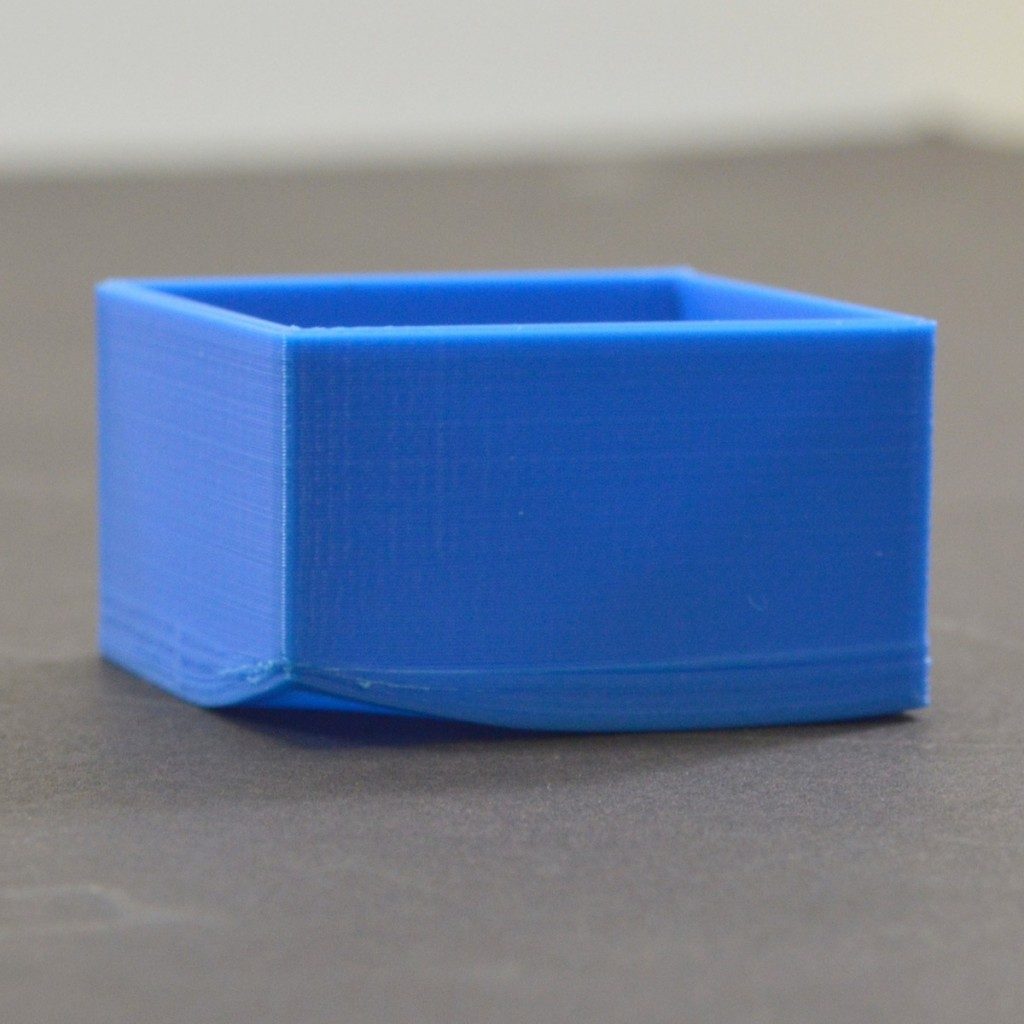
Temperature issues have a “signature.” Use this table to diagnose faster without guessing.
| Symptom | More likely too hot | More likely too cool | Fastest fix to try first |
|---|---|---|---|
| Stringing on travel moves | Yes | Sometimes (less common) | Lower temp 5°C OR increase retraction/enable wiping; confirm filament is dry |
| Weak parts snapping at layer lines | Rare | Yes | Raise temp 5–10°C; reduce fan (material-dependent) |
| Blobs/zits and extra ooze | Yes | Sometimes (pressure issues) | Lower temp 5°C; tune retraction; check seams; ensure no partial clog |
| Rough walls / “sandpaper” look | Sometimes (too much ooze) | Yes | Raise temp 5–10°C; slow down slightly; check nozzle condition |
| Bridges droop | Yes | Sometimes (under-extrusion can ruin bridges too) | Lower temp 5°C OR increase fan just for bridges |
| Clicking / skipping extruder | Rare (unless heat creep) | Yes | Raise temp; slow speed; verify hotend cooling fan is working |
| Overhangs curl upward | Yes (soft plastic + heat) | Sometimes | Lower temp slightly; improve part cooling; adjust overhang speed |
One important beginner truth: wet filament can impersonate “wrong temperature.” If you’re tuning temperature endlessly and results keep shifting, dryness is worth checking before you blame your slicer. If you’ve never dried filament before, this post on filament quality (and why dryness changes everything) can help you spot when the spool—not the slicer—is the real culprit.
The fastest way to find the right temp (without wasting days)
If you only remember one method, make it this: print a temperature tower.
A temp tower gives you multiple temperature samples in a single print so you can see where your filament looks best and behaves best. It’s quicker than printing the same model ten times with ten different temps. And if your results feel inconsistent from one test to the next, circle back and sanity-check your baseline setup using the calibration guide—temperature tuning is way easier when first-layer, flow, and motion are already stable.
How to run a temp tower the smart way
- Use the same filament you actually plan to use. Different brands behave differently.
- Keep speed and cooling consistent during the tower (unless the model is designed for special bridge tests).
- Judge more than looks. Pick the best section based on: stringing, bridge quality, corner sharpness, and layer bonding.
- Then lock in your “daily driver temp.” You can still go a little hotter for strength parts or a little cooler for display parts.
If you want a simple rule of thumb after the tower: choose the temperature segment where bridges look stable and walls look consistent, then do a quick “snap test” on a small sample to confirm the layers feel fused.
Nozzle temp vs bed temp: beginners mix these up constantly
When a print fails, it’s easy to raise nozzle temperature because it feels like “more heat = more stick.”
But first-layer issues are often more about bed temperature, first-layer speed, Z-offset, and surface prep than nozzle heat. If you want a quick refresher that fixes 80% of “why won’t it stick?” problems, start with this first-layer troubleshooting guide before you touch nozzle temp.
Here’s the clean separation:
- Nozzle temperature controls melt quality, flow, adhesion between layers, and stringing.
- Bed temperature controls first-layer grip and warp resistance.
So if you’re raising nozzle temp to fix bed adhesion, you might accidentally create stringing, blobs, and sagging—then spend hours “fixing” problems you just introduced.
Why temperature changes feel “random” on different printers
Two people can print the same PLA at “200°C” and get different results. That’s not because one of them is wrong. It’s because 3D printers don’t all deliver heat the same way.
- Thermistor placement and hotend design change how accurately “200°C” reflects real melt temperature.
- Fan duct direction can cool the nozzle tip and the part differently from one printer to another.
- Volumetric flow capability (how much plastic your hotend can melt per second) varies a lot.
- Enclosures and ambient temperature change how quickly layers cool—especially for ABS/ASA.
This is also why you should treat online temperature advice as a starting point, not a destination.
The “two-temperature” strategy experienced makers use
Beginners often hunt for one perfect temperature. Experienced makers usually keep two:
- Beauty temp (clean surfaces, less stringing, crisp details)
- Strength temp (better layer fusion, tougher functional parts)
For example, you might print PLA display parts a little cooler for sharpness, then print brackets slightly hotter to boost layer bonding. Same filament. Different job.
The hidden trap: cooling can cancel out your temperature change
Here’s a beginner-killer scenario:
You lower nozzle temperature to reduce stringing… but your fan is already blasting. Now extrusion becomes inconsistent, adhesion weakens, and you start seeing brittle layers.
Cooling and temperature are a pair. If you change one, you often need to sanity-check the other.
Practical example: if your PLA looks great but parts snap easily, you might not need a hotter nozzle—you might need slightly less fan (especially on thicker walls) so layers fuse better.
Temperature tuning workflow (beginner-proof)
If you want repeatable results, follow this exact order. It prevents the most common “I fixed it but broke it” loop.
- Step 1: Confirm filament is dry enough to trust your test. If your spool is popping, hissing, or stringing unpredictably, dry it before tuning.
- Step 2: Make sure your nozzle is clean and not worn out. A partial clog will waste your entire tuning session.
- Step 3: Pick a realistic speed. If you plan to print fast, tune at that speed. If you print slow, tune slow.
- Step 4: Print a temperature tower. Identify a good-looking segment.
- Step 5: Validate strength. Print a small functional test and do a simple flex/snap check.
- Step 6: Fine-tune retraction last. Don’t chase stringing with retraction until temperature is close.
This workflow saves filament because it stops you from tuning settings in the wrong order. And if retraction is still the piece that feels confusing, this beginner guide to retraction and core settings makes it easier to adjust without turning your slicer into a guessing game.
Disclosure
Tools that make tuning easier (optional, but genuinely helpful)
If you’re constantly fighting inconsistent extrusion or you’re upgrading your setup, the right hardware and filament quality can make temperature tuning feel far less finicky.
If you’re chasing clean, repeatable results, consistent filament matters as much as settings. A reliable spool can reduce the “why did this change?” feeling that drives beginners crazy.
And if you’re building parts that must fit real-world objects (or you’re designing around scanned geometry), a scanner can help you print more accurately—temperature tuning then becomes part of achieving true dimensional fit.
For additional filament and material options (especially if you like trying new spools to compare behavior), these are also available:
Tip: If you test multiple brands, write the winning temperature on the spool label. That tiny habit turns “temperature guessing” into a solved problem.
FAQ
Should I increase the temperature to fix bed adhesion?
Usually, no. Bed adhesion is more often solved by bed temperature, Z-offset, first-layer speed, and surface prep. Raising nozzle temperature can help slightly, but it often creates stringing and blobs if pushed too far. If you’re stuck in a “won’t stick” loop, use the first-layer fixes guide first, then revisit nozzle temp.
Why does lowering temperature reduce stringing but make prints weaker?
Lower temperature reduces oozing because the filament is less fluid, but it also reduces how well layers fuse. That’s why prints can look cleaner yet break more easily along layer lines.
How much should I change temperature at a time?
Use small steps: 5°C increments are usually enough to see changes without jumping past the sweet spot. Bigger swings are useful only when you’re clearly far off the correct range.
Why do my temperature settings work on one spool but not another?
Different brands (and even different colors) can contain different additives and melt differently. Temperature tuning is often spool-specific, especially for PETG and specialty blends.
What’s the best temperature for PLA?
There isn’t one best number. Most PLA prints somewhere around 190–220°C, but the best temperature depends on speed, cooling, and the specific filament. A temp tower is the quickest way to find your real “best.”
Final takeaway (the result that surprises most beginners)
The biggest surprise is this: temperature doesn’t simply make prints “better” or “worse.” It shifts where your printer’s behavior lands on a spectrum—strength vs sharpness, flow vs control, bonding vs droop.
When you stop hunting for one perfect temperature and start choosing the right temperature for the job (and for the filament), your success rate jumps—and “mystery failures” become predictable, fixable patterns.
If you want the fastest win: run a temp tower, lock in a daily driver temp, then tune retraction and cooling around it. That single sequence turns temperature from guesswork into a repeatable system.