
Over-cooling is one of the most common mistakes in FDM 3D printing. While high-speed fans are marketed as a solution for better overhangs, excessive airflow often leads to poor layer adhesion, warping, and brittle parts. To achieve the best results, you must balance cooling speed with material-specific thermal requirements rather than simply running fans at 100%.
In the quest for perfect bridges and sharp corners, many makers crank their part-cooling fans to the maximum. However, 3D printing is a thermal balancing act. When you cool a polymer too quickly, you prevent the polymer chains from intertwining with the previous layer. This results in “inter-layer delamination,” where the print looks good but snaps under the slightest pressure.
Disclosure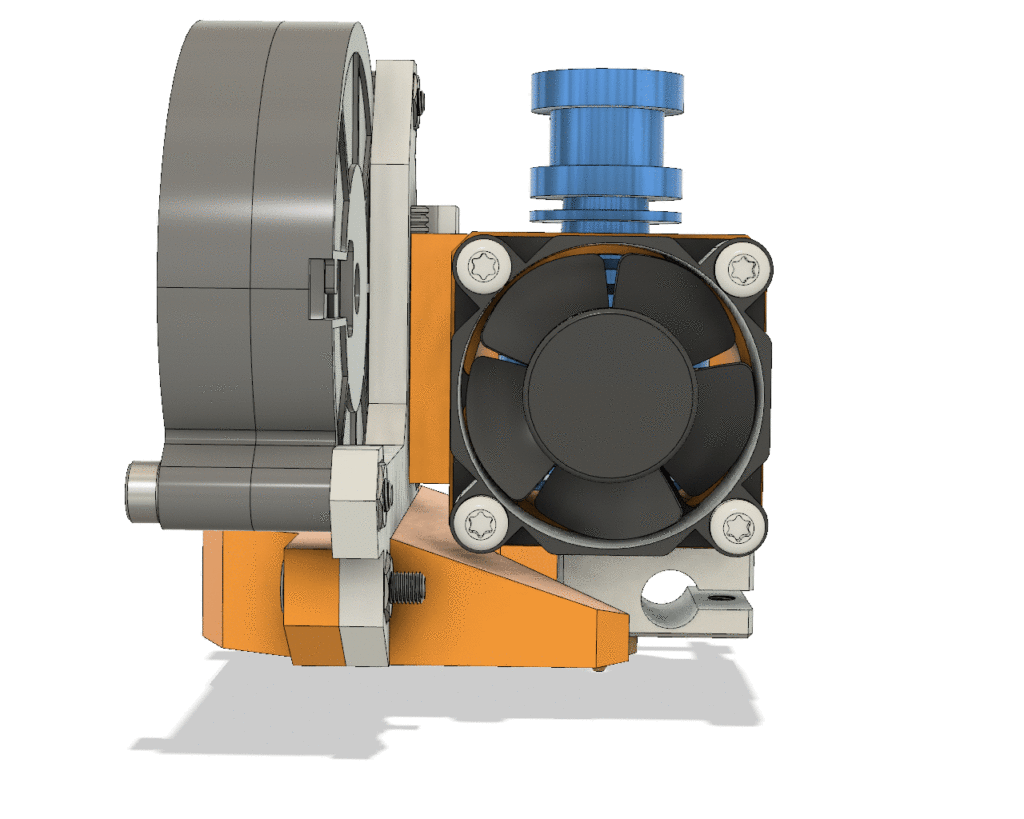
The Hidden Risks of Excessive Airflow
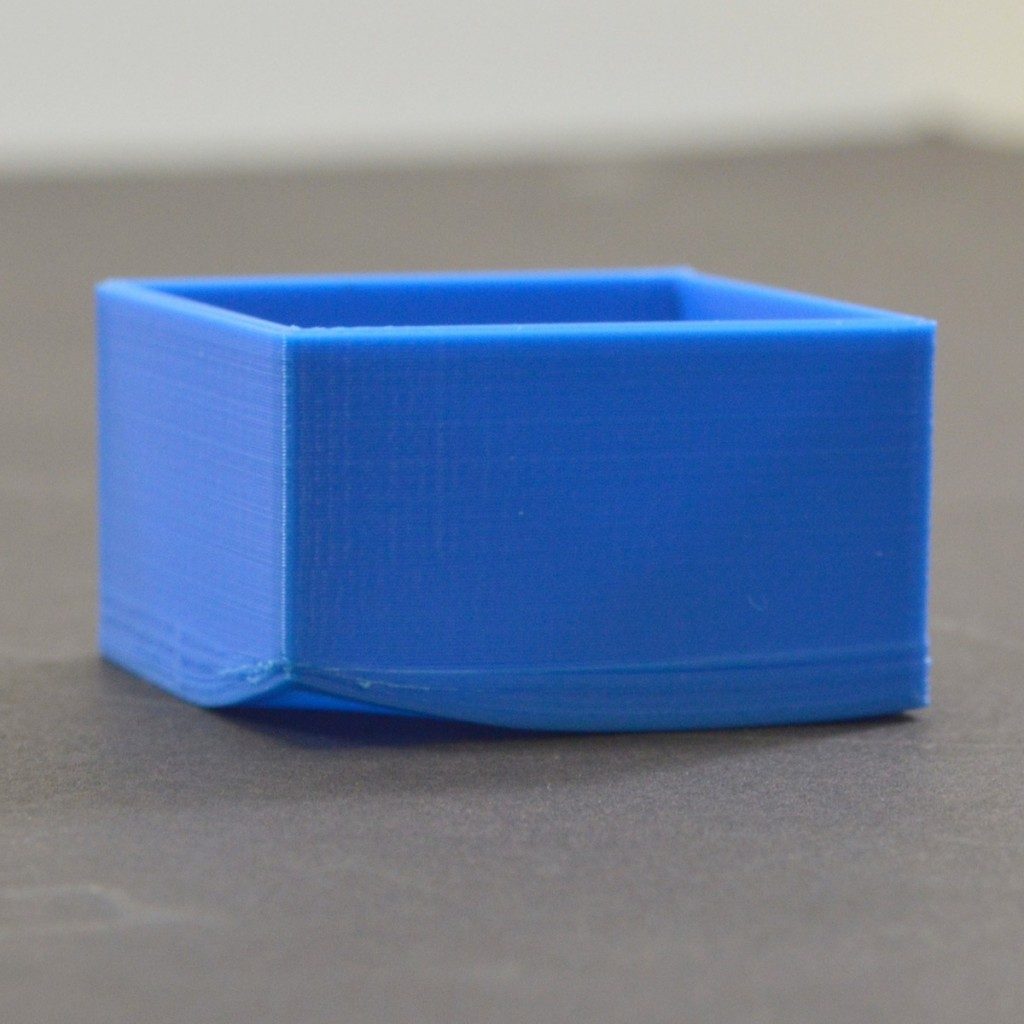
- Reduced Structural Integrity: Rapid cooling “freezes” the plastic before it can thermally fuse to the layer below.
- Warping and Shrinkage: Sudden temperature drops cause the material to contract unevenly, pulling the corners off the build plate.
- Matte vs. Glossy Inconsistency: Variable fan speeds change the surface finish, leading to visible banding.
Material-Specific Cooling Requirements
Different filaments react uniquely to airflow. If you are using high-performance machines like those found in the https://tidd.ly/3KUghXJ“>Creality ecosystem, you have granular control over these settings. Understanding these boundaries is essential for professional-grade results.
| Material | Recommended Fan Speed | The “Why” |
|---|---|---|
| PLA | 70% – 100% | Needs rapid cooling to stay rigid; low glass transition temp. |
| PETG | 20% – 50% | Needs heat to remain “sticky” for layer bond strength. |
| ABS/ASA | 0% – 15% | Prone to shrinking; cooling causes immediate cracking. |
| TPU | 30% – 60% | Balance is needed to prevent stringing without losing adhesion. |
How to Optimize Cooling for Strength and Speed
To improve your print quality, stop treating the fan as a “set and forget” toggle. Instead, implement these three strategic adjustments in your slicer.
1. Use “Bridge Fan Speed” Overrides
Keep your global fan speed lower for the bulk of the print to ensure structural strength. Enable a specific override for bridges and overhangs. This allows the fan to ramp up only when the printer is extruding over thin air, then throttle back down for the solid infill.
2. Calibrate Based on Layer Time
Small layers (like the chimney on a Benchy) do not have enough time to cool naturally before the nozzle returns. Use the “Minimum Layer Time” setting to slow down the print head rather than just blasting the fan. This ensures the previous layer is solid enough to support the next one without sacrificing the bond.
3. Invest in Quality Hardware
The quality of your cooling shroud matters more than the RPM of the fan. If you are looking for precision hardware or upgrading your setup, check out the specialized components at https://tidd.ly/4oBR0PW“>HONG KONG CHAORONG CO., LIMITED for reliable replacement parts.
Pro Tip: The Filament Factor
The chemical composition of your filament impacts how it reacts to air. For high-quality, consistent results that don’t warp under moderate cooling, we recommend COEX 3D Filament. Their US-made resins provide a wider thermal window for better layer fusion.
The Role of Precision Scanning in Quality Control
If you are printing functional parts that must meet tight tolerances, cooling-induced shrinkage can ruin a project. By using a 3D scanner from https://tidd.ly/49ziphJ“>3DMakerpro, you can scan your finished prints and overlay them against the original CAD model. This allows you to see exactly where excessive cooling is causing dimensional inaccuracies.
Internal Resources for 3D Printing Success
Optimizing your cooling is just one step in mastering the craft. For more deep dives into hardware and troubleshooting, explore our guides:
- Latest 3D Printing News and Reviews
- Maximizing High-Speed Printing Performance
- Custom Troubleshooting Support
Frequently Asked Questions
Does fan speed affect print dimensions?
Yes. Rapid cooling can cause plastic to contract faster than anticipated, leading to dimensional inaccuracies. Scaling your model slightly or reducing fan speeds can help.
Should I use a fan for the first layer?
Generally, no. You should keep the cooling fan turned off for the first 2-3 layers to ensure maximum bed adhesion and prevent the corners from lifting.
Can I print PLA with 0% cooling?
While possible, it is not recommended for models with detail. Without cooling, PLA tends to sag and lose its shape because it remains in a semi-liquid state for too long.
Ready to Level Up Your Prints?
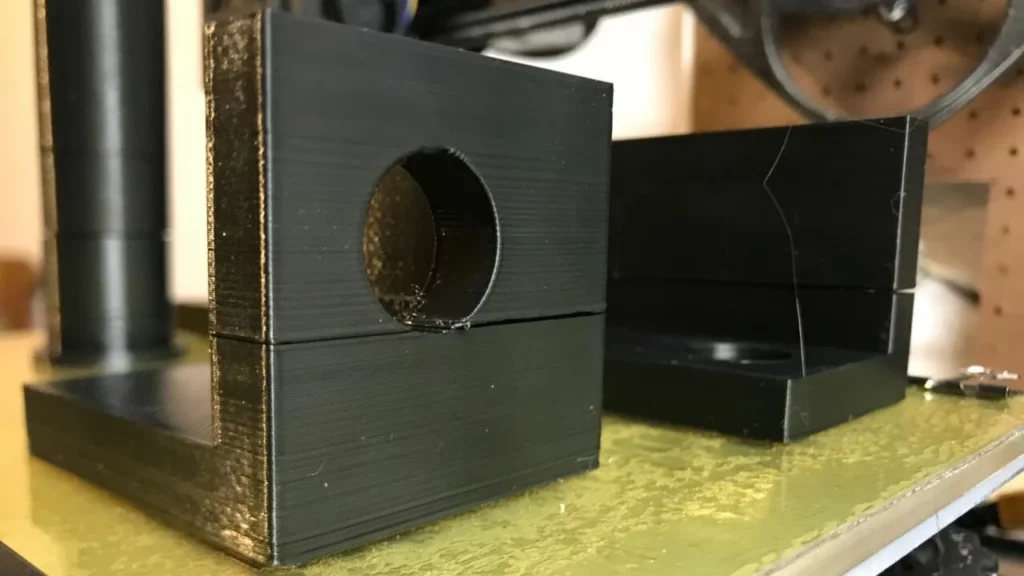
Don’t let bad settings hold back your creativity. Whether you need a new Creality 3D Printer or premium COEX Filament, using the right tools is the first step toward flawless prints.
