
Under-extrusion is when your printer lays down less plastic than it should—so prints look thin, weak, or “see-through.” The good news: most under-extrusion problems are fixable without replacing parts. In fact, the most common causes are calibration drift, filament drag, partial clogs, temperature mismatch, and slicer flow settings.
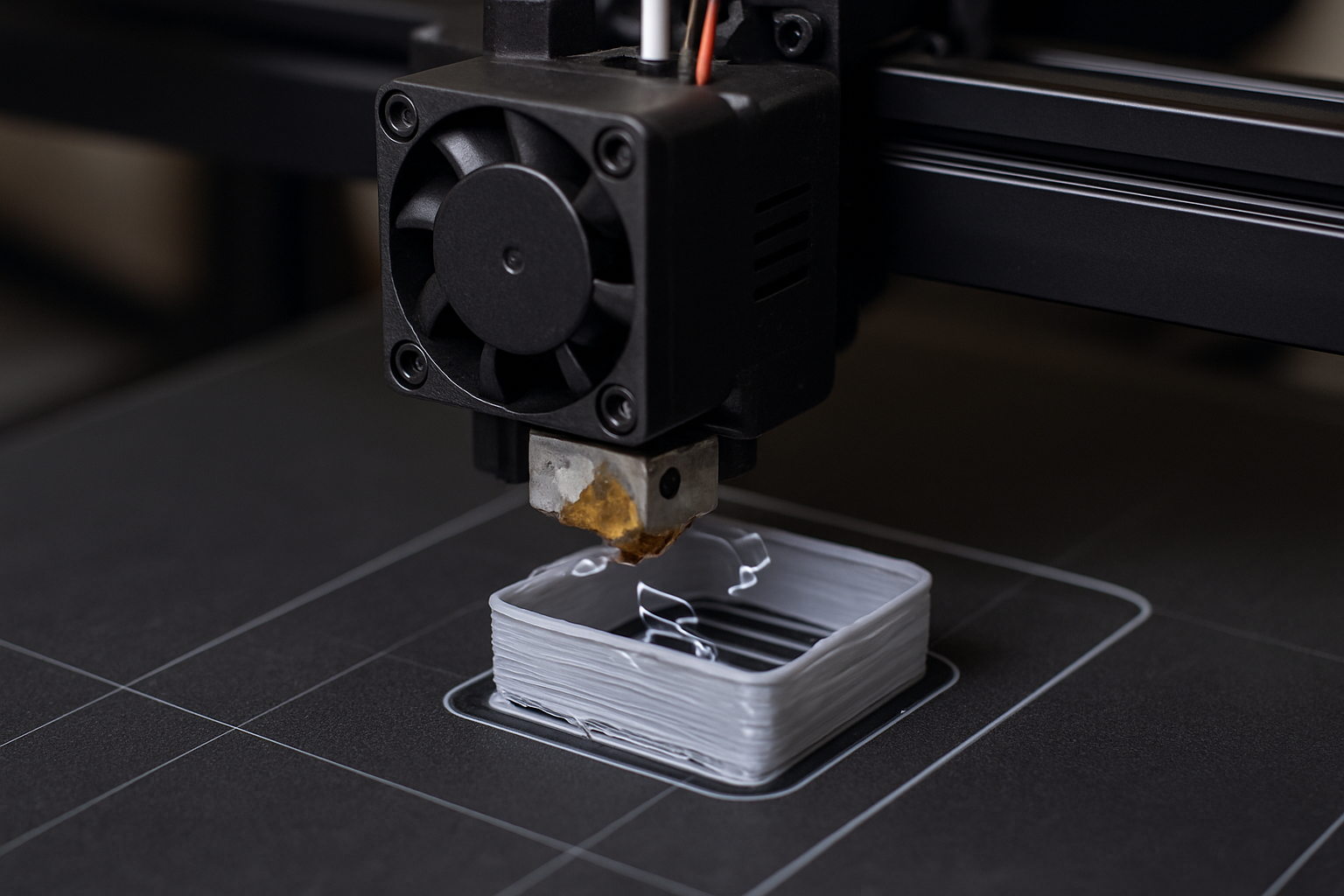
Use this quick path: If you need a fast win, start with the 60-second checklist below, then follow the step-by-step fixes in order. Each step is designed to protect print quality and avoid unnecessary spending.
The Fastest Way to Fix Under-Extrusion (No Parts Replaced)
Fix under-extrusion by (1) confirming filament moves freely to the extruder, (2) raising nozzle temperature 5–15°C if flow looks “dry,” (3) reducing speed 10–25% to match melt capacity, (4) checking E-steps and setting flow back to 100%, (5) clearing partial clogs with a cold pull and nozzle cleaning routine, and (6) disabling accidental slicer limits like tiny line width or extreme retraction. Print a small test after each change so you don’t stack variables.
The 60-Second Under-Extrusion Checklist
- Filament drag: spool spins freely, no tangles, no sharp bends, no tight guides
- Extruder grip: filament isn’t slipping (no dust pile, no “clicking,” no chew marks)
- Temperature: bump nozzle temp +5 to +15°C for a quick flow test
- Speed: reduce print speed 10–25% (especially walls/infill)
- Flow: slicer flow/extrusion multiplier set to 100% while troubleshooting
- Clog hint: inconsistent line, random gaps, “popping,” or sudden thin spots
If the print improves after the temperature or speed change, you’re dealing with a melt-flow mismatch (not a broken part). Keep going to lock in the clean fix.
What Under-Extrusion Looks Like (So You Don’t Chase the Wrong Problem)
| Symptom | Most Likely Cause | Best “No Parts” Fix |
|---|---|---|
| Thin walls, see-through top layers | Flow set too low / wrong line width | Reset flow to 100%, verify line width & nozzle size |
| Random gaps mid-print | Partial clog / filament snag | Cold pull + reduce drag + dry filament |
| Extruder clicking or “thunking” | Too much back-pressure | Increase temp, reduce speed, ease retraction |
| Perfect first layer, then weak infill | Too fast after first layer | Lower infill speed, raise temp slightly |
| Good PLA, bad PETG (or vice versa) | Material needs different heat/flow | Material-specific temp + fan + speed profile |
Fix Under-Extrusion Without Replacing Parts: Step-by-Step (In the Right Order)
This order matters. Start with the “free” mechanical checks, then temperature/speed, then calibration, then clog-clearing. Most people waste time because they jump straight to hardware.
Step 1) Remove Filament Drag (The Most Overlooked Cause)
Under-extrusion can happen even when the hotend is fine—simply because the extruder can’t pull filament smoothly.
- Make sure the spool can rotate freely (no rubbing on a tight holder)
- Check for tangles or “crossed loops” on the spool
- Avoid sharp bends into the extruder (especially with brittle filament)
- If you use a dry box, confirm the exit path isn’t pinching the filament
Quick test: With the printer idle, pull filament by hand from the spool toward the extruder. It should feel smooth and consistent—no sudden spikes in resistance.
Step 2) Match Heat + Speed to Melt Capacity (The Fastest True Fix)
If you print faster than your hotend can melt, the extruder starts losing the fight. The result looks like “not enough plastic,” but the root cause is not enough melting per second.
- Increase nozzle temperature by +5°C, test. If still weak, go +10–15°C (within your filament’s safe range).
- Reduce print speed by 10–25% (start with outer walls and top layers).
- If you changed nozzle size or line width recently, revert to a known-good profile first.
Rule of thumb: If a small temperature bump or speed drop improves lines immediately, you’ve confirmed a melt-flow bottleneck—no parts required.
Step 3) Reset Slicer Flow to a Clean Baseline
When troubleshooting, you want a “known normal.” Flow/extrusion multiplier tweaks can hide the real issue or stack on top of calibration drift.
- Set Flow / Extrusion Multiplier = 100%
- Confirm the correct nozzle diameter is selected (0.4 vs 0.6 mistakes cause instant weirdness)
- Confirm filament diameter = 1.75mm (or your actual size) and not accidentally changed
- Avoid extreme line widths while diagnosing (keep it close to nozzle size)
If you’re not sure what changed, create a temporary “Troubleshoot” preset with conservative speeds and stock flow. Once extrusion is stable, you can dial performance back up.
Step 4) Verify E-Steps (The Calibration That Fixes “Phantom” Under-Extrusion)
E-steps tell the printer how much filament to push when it thinks it’s pushing 100mm. If that number is off, every print is under-fed—no matter how perfect your slicer is.
If you want a guided walkthrough, here are quick internal searches on 3DPrintingByKevin.com you can open in a new tab:
- E-steps calibration articles
- More under-extrusion troubleshooting posts
- First layer troubleshooting (often related)
Important: Calibrate E-steps only when the extruder is not slipping and filament drag is under control—otherwise the measurement lies.
Step 5) Fix Retraction and Back-Pressure (Especially on Bowden Setups)
Over-retraction can create pressure instability. That can look like random thinning or gaps right after travel moves.
- Reduce retraction distance slightly (try 10–20% less)
- Reduce retraction speed if you hear clicking during retract/prime
- Enable “wipe” or “coast” only after extrusion is stable (optional features can complicate diagnosis)
Tell-tale sign: Under-extrusion happens right after a travel move or at the start of a new wall segment.
Step 6) Clear Partial Clogs Without Replacing the Nozzle
Partial clogs are common and they don’t always show up as a total jam. They cause inconsistent flow—good lines, then weak lines, then good again.
No-parts routine (safe and effective):
- Heat the nozzle to normal printing temperature and manually extrude 20–30mm
- Do a cold pull (heat, then cool to a “grippy” temp, then pull filament out to remove debris)
- If you have cleaning filament, run a short purge cycle
- Re-test with a simple extrusion line test (single-wall cube or straight-line extrusion)
Pro tip: If filament pops, hisses, or leaves a rough surface, moisture can mimic clogs. Drying the spool often fixes “mystery under-extrusion” fast.
Common Settings That Quietly Cause Under-Extrusion
| Setting | Risk | Safer Troubleshooting Value |
|---|---|---|
| Flow / Extrusion Multiplier | Too low masks the real issue | 100% |
| Line Width | Too wide increases back-pressure | Near nozzle size (e.g., 0.42–0.48 for 0.4 nozzle) |
| Speed (walls/top) | Outruns hotend melt rate | Drop 10–25% until stable |
| Retraction Distance | Pressure instability / gaps after travel | Reduce 10–20% |
| Temperature | Too low = “dry” weak extrusion | Increase +5 to +15°C within filament range |
When It’s Not Under-Extrusion (Quick Reality Check)
These issues look similar but have different fixes:
- Gaps only on top layers: often insufficient top layers or low infill density, not true under-extrusion
- Weak corners: can be cooling or acceleration tuning (not always flow)
- Layer separation: usually temperature/cooling/material settings, not just extrusion amount
If the printer lays down perfect, consistent lines during a slow single-wall test, your hardware is likely fine and the issue is slicer profile-related.
Buyer-Intent Tools That Help (Optional, Not Required)
You can fix most under-extrusion without buying anything. But if you’re tired of repeat issues, a few maintenance-friendly add-ons can save time: dry storage, basic cleaning tools, and reliable filament.
Optional upgrades (that still avoid replacing parts)
- Filament management (dry boxes, smooth spool holders) to eliminate drag and moisture
- Cleaning essentials (cleaning filament, needles, brushes) for partial clogs
- Quality filament for consistent diameter and fewer jams
Ethical note: none of the items above are required to solve under-extrusion. They’re simply helpful if you want fewer interruptions and more consistent prints over time.
Troubleshooting Flow: Find the Cause in 5 Minutes
Start here:
- Does a +10°C temp test improve extrusion? If yes → heat/speed mismatch.
- Does a -20% speed test improve extrusion? If yes → melt capacity limit or back-pressure.
- Is the filament path smooth with no snags? If no → fix drag.
- Is flow set to 100% and nozzle size correct? If no → reset slicer baseline.
- Do lines fluctuate randomly? If yes → partial clog or moisture → cold pull + dry spool.
FAQ: Under-Extrusion Fixes (Fast Answers)
Can I fix under-extrusion without replacing the nozzle?
Yes. Many cases are caused by filament drag, low temperature, printing too fast, incorrect flow settings, or partial clogs that clear with a cold pull and purge routine.
Why does under-extrusion happen randomly mid-print?
Random gaps usually point to intermittent resistance: a spool snag, moisture causing inconsistent melt, or debris creating a partial clog. Address drag first, then do a cold pull and re-test.
Should I increase flow to fix under-extrusion?
Only after you confirm calibration and clog-free flow. As a rule, reset flow to 100% during troubleshooting. If the printer is slipping or partially clogged, higher flow can make things worse.
What temperature change usually helps?
A small bump of +5°C is a safe first test. If the lines look noticeably healthier, you’ve likely found a melt-flow mismatch and can fine-tune temperature and speed for stability.
When should I check E-steps?
Check E-steps when the filament path is smooth and the extruder is not slipping. E-steps correct consistent under-feeding across every print, not random interruptions.
Affiliate Disclosure
Disclosure: This post may contain affiliate links. If you choose to buy through these links, I may earn a commission at no extra cost to you. I only share products and tools that are relevant to the topic and helpful to readers.