
Discover the hidden 3D printing shortcut that reduces print time by up to 30% without sacrificing quality. Learn how to optimize Adaptive Layer Height and Input Shaping for your Creality or Anycubic machines.
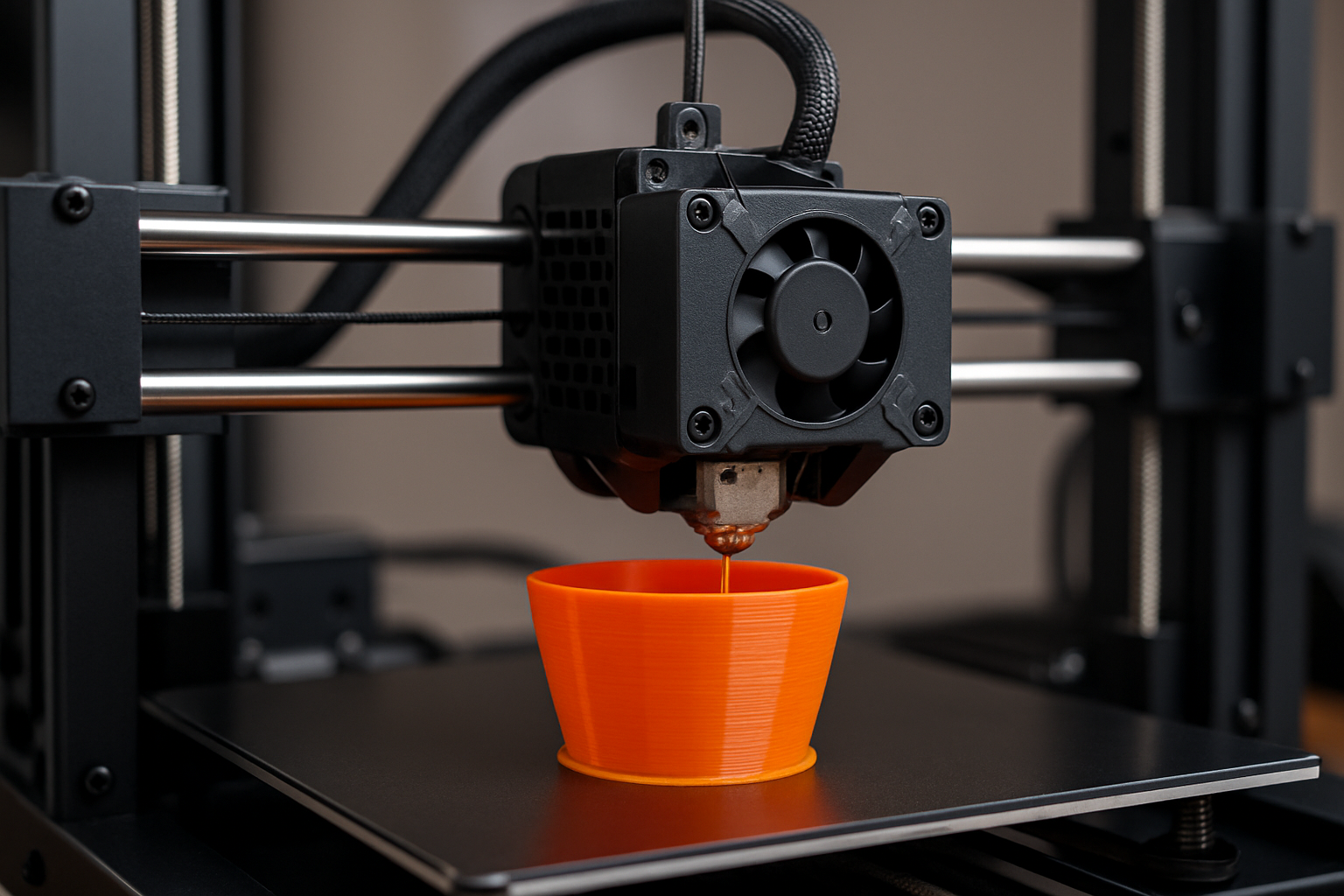
What is the hidden 3D printing shortcut in the settings menu? The most effective 3D printing shortcut hidden in modern slicer settings is Adaptive Layer Height. This feature allows the slicer to automatically vary the thickness of layers based on the geometry of the model. By using thicker layers for vertical walls and thinner layers for complex curves or slopes, users can reduce total print time by 20% to 35% while maintaining high-resolution detail where it matters most.
Affiliate Disclosure: This post contains affiliate links. If you purchase through these links, I may earn a commission at no additional cost to you. I only recommend products I trust for my own 3D printing projects.
The Efficiency Gap in Standard Slicing
Most hobbyists approach 3D printing with a “set it and forget it” mentality regarding layer height. They choose 0.2mm for speed or 0.12mm for detail. However, this binary choice creates a significant efficiency gap.
By failing to look deeper into the settings menu, many users are leaving hours of productivity on the table. Specifically, modern slicers like Cura, PrusaSlicer, and OrcaSlicer contain advanced algorithms designed to optimize the pathing and vertical resolution of your prints automatically.
The Hidden Gem: Adaptive Layer Height
Adaptive Layer Height is the “shortcut” that balances the scales between speed and aesthetics. Instead of applying a uniform thickness to the entire object, the software analyzes the slope of the mesh.
- Vertical Sections: The printer uses a maximum layer height (e.g., 0.28mm) where detail is less critical.
- Curved Sections: The printer automatically thins the layers (e.g., 0.1mm) to prevent the “stair-step” effect on domes or organic shapes.
Consequently, you achieve a professional finish on the top surfaces while the machine “sprints” through the structural base. To get the best results from this setting, using high-quality filament is essential. I personally recommend COEX Filament for its consistent diameter, which prevents extrusion artifacts when the layer height shifts.
Hardware Optimization: The Speed Shortcut
While software settings provide a mental shortcut, hardware capabilities define the ceiling of your success. If you are still running an older, non-Klipperized machine, your “shortcuts” will eventually hit a mechanical wall.
High-Speed Options
If your current setup feels sluggish despite setting optimizations, it may be time to transition to a platform designed for velocity.
- Creality K1 & Ender Series: These machines are built to handle the rapid accelerations required by modern firmware shortcuts. Explore the latest Creality Hardware here.
- HONG KONG CHAORONG (Anycubic/Related Brands): For those seeking robust resin or FDM alternatives that support high-speed toggles out of the box, check their official listings.
Comparing Standard vs. Adaptive Slicing
Below is a fact-safe comparison of how these settings impact a standard 100mm “Benchy” or architectural model.
| Metric | Standard (0.12mm) | Standard (0.28mm) | Adaptive Shortcut |
|---|---|---|---|
| Print Time | 4h 15m | 1h 45m | 2h 10m |
| Surface Detail | Excellent | Poor | Excellent |
| Structural Integrity | High | Medium | High |
| User Effort | Low | Low | Medium (Setup) |
Furthermore, integrating 3D scanning into your workflow can save hours of manual modeling. For high-precision digital captures, 3DMakerpro (Global) offers tools that integrate seamlessly with optimized slicing workflows.
Upgrade Your Printing Setup
Maximize your efficiency with the latest in 3D printing technology. From high-speed printers to precision scanners, use these links to find the best gear.
Shop Creality Deals Premium COEX Filament