
Raising print speed triggers a chain reaction: volumetric flow limits, vibration, and cooling problems. Learn what changes, why prints fail, and how to go faster without losing quality.
But speed isn’t a single setting. It’s a trigger. The moment you print faster, you also change how quickly your hotend must melt filament, how hard your motion system must accelerate, how much time layers get to cool, and how forgiving your extrusion becomes.
That’s why speed changes surprise beginners. The “time saver” can quietly turn into weak layers, rough walls, missing lines, warped corners, or a print that looks fine until it snaps in your hands.
What happens when you increase 3D printer speed?
Increasing 3D printer speed raises the amount of plastic your hotend must melt per second and increases the forces your printer must control during acceleration and direction changes. If your hotend can’t keep up, you get under-extrusion and weak layer bonding. If your motion system can’t stay stable, you get ringing, ghosting, and shifted details. If layers don’t cool in time, you get warping, droop, and messy surfaces.
The Immediate Effect: Faster Movement, Shorter Estimates
Yes, the obvious part is real. Higher speed usually lowers estimated print time because the toolhead (or bed) is moving faster during perimeters and infill. A 10-hour print might drop to 7–8 hours.
The surprise is what happens next. Speed increases don’t only affect “movement.” They increase demands across the entire system, and those demands show up as three bottlenecks: thermal flow, mechanical stability, and cooling time.
Hidden Consequence #1: You Hit a Melt-Flow Ceiling (Volumetric Flow Limit)
Your hotend can only melt so much filament per second. When you print faster, you’re asking for more molten plastic every moment. Eventually the filament doesn’t spend enough time in the melt zone, so it stays too thick to push cleanly through the nozzle.
That’s the real limiter for many “why did my print suddenly get weak?” moments. You didn’t just increase speed. You exceeded your hotend’s volumetric flow capability.
What it looks like: thin walls, gaps in perimeters, brittle parts, top layers that won’t close, and sometimes extruder clicking or skipping.
What beginners do next (and why it’s risky): they crank temperature way up. Sometimes that helps flow, but it can also increase stringing, blobs, and sagging overhangs if you go too far.
| Speed Increase | What You’re Really Increasing | Common Result If Your Hotend Can’t Keep Up |
|---|---|---|
| +10–20% | Plastic demanded per second | Minor surface roughness, occasional thin spots |
| +30–50% | Volumetric flow demand | Under-extrusion, weak layer bonding, porous walls |
| “As fast as it goes” | Beyond melt capacity | Extruder clicking, missing lines, failed prints |
If you want a clean baseline before you chase faster profiles, run a proper calibration workflow first. Your results at speed will never be better than your results at baseline. (3D printing calibration guide.)
Hidden Consequence #2: Your Printer Starts “Ringing” (Inertia, Vibration, and Motion Limits)
Speed alone isn’t the villain. Acceleration is. Most print artifacts show up when the printer has to speed up, slow down, and change direction repeatedly, especially around corners and small features.
When you raise print speed, you usually force higher acceleration behavior, even if you didn’t touch the acceleration number. The printer tries to hit those faster targets, and your frame, belts, wheels/rails, and toolhead mass decide how cleanly that happens.
What it looks like: ghosting/ringing (wavy echoes after corners), ripples on walls, smeared details, and sometimes layer shifts if the system loses steps.
If you’re chasing faster prints without ugly walls, tuning acceleration (and using input shaping where available) usually gives more real-world gains than simply pushing “print speed” higher.
This is also why “high-speed printing” is often a package deal: rigid frame, solid belts, stable cooling, and a hotend that can sustain flow. Speed is the headline, but the hardware underneath is the story.
Hidden Consequence #3: Layers Don’t Get Enough Time to Cool
Every layer needs a moment to solidify before the next hot layer lands on top. When speed is too high—especially on small parts—the nozzle returns to the same area too quickly. The plastic underneath is still soft, so it deforms.
What it looks like: droopy overhangs, rounded corners, messy bridges, softened details, warped edges, and “mushy” surface texture.
This is where material choice matters. PLA is forgiving because it cools quickly. PETG can get stringy and glossy when pushed too hot or too fast, and it often needs careful cooling balance. ABS and similar materials can warp if cooling is uneven or if layers are deposited too aggressively.
If your prints suddenly show stringing after a speed change, don’t assume speed is the only cause. Retraction and temperature are now part of the same equation.
( Retraction settings explained.)
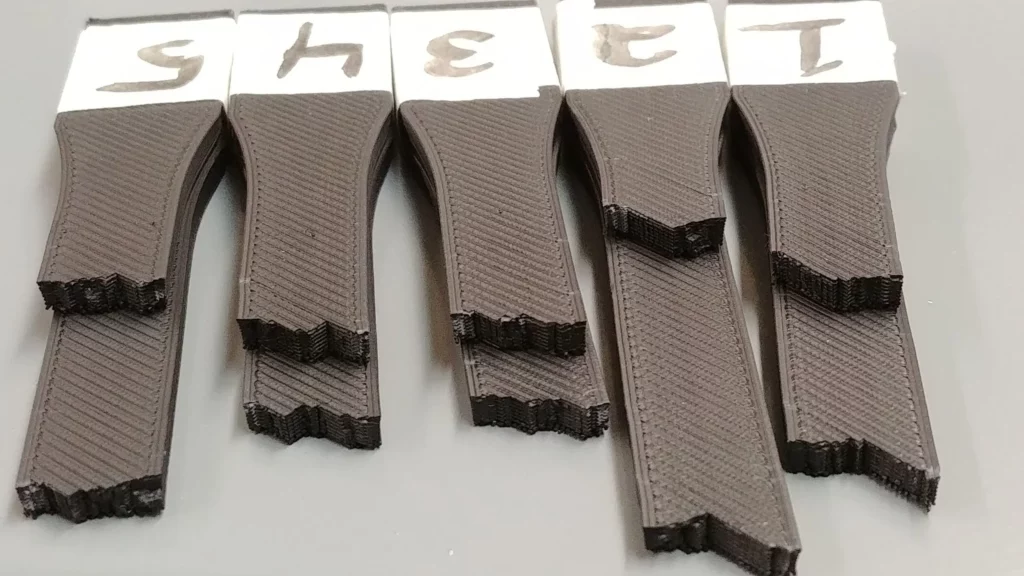
The Speed Chain Reaction Most Beginners Don’t Expect
| If You Increase… | You Also Stress… | So You Often Must Adjust… |
|---|---|---|
| Print speed | Hotend melt capacity | Temperature, max volumetric speed, line width expectations |
| Perimeter speed | Corner control | Acceleration, input shaping, pressure advance (if available) |
| Small feature speed | Cooling time per layer | Minimum layer time, fan tuning, slower small-perimeter speeds |
| Infill speed | Flow stability | Extrusion consistency, top-layer settings, overlap tuning |
If your first layer gets worse after you change speed, it’s not your imagination. Faster printing can reduce consistency and amplify tiny leveling or Z-offset errors.
(First layer problems and fixes.)
The “Tune-Up” Approach: How to Get Faster Without Destroying Quality
The safest way to print faster is not a brute-force speed jump. It’s a controlled ladder.
Step 1: Lock in a Baseline That Prints Clean
Start with a known-good profile. Many beginners get better results around a moderate baseline because the printer is stable, the hotend stays consistent, and cooling has time to work.
Then change one thing at a time. Speed first. Temperature only if you see flow limits. Cooling only if you see deformation.
Step 2: Respect Volumetric Flow (Your Real Speed Limit)
Think in mm³/s, not just mm/s. Speed is distance per second. Flow is plastic volume per second. Large line widths and tall layers demand much more melted plastic even at the same mm/s.
If you’re consistently seeing under-extrusion after a speed increase, you’re likely bumping into melt capacity. At that point, the best fixes are usually:
- reduce speed for perimeters and top layers (keep infill faster if you want)
- raise temperature slightly (small steps, not huge jumps)
- use a filament that flows more easily for high-speed printing
- dry your filament if it’s popping, stringing, or inconsistent (Internal link idea: How to dry filament and why it matters)
Step 3: Tune Motion Where It Matters (Acceleration and Input Shaping)
If your walls look “echoed” near corners, lowering acceleration slightly can produce a cleaner print with only a small time penalty. If your firmware supports it, input shaping can reduce ringing dramatically while preserving speed.
This is often the “aha” moment: you can print faster by moving smarter, not just moving faster.
Fast Troubleshooting: What Your Speed Problems Are Really Saying
| Symptom After Speed Increase | Most Likely Cause | Best First Fix |
|---|---|---|
| Gaps in walls / weak layers | Volumetric flow limit | Lower perimeter speed or raise temp slightly |
| Clicking extruder / missing lines | Hotend can’t melt fast enough | Reduce speed, check partial clogs, confirm filament path |
| Wavy “echo” near corners | Ringing from inertia | Lower acceleration or enable input shaping |
| Droopy overhangs / messy bridges | Not enough cooling time | Slow small layers, tune fan, increase minimum layer time |
| More stringing than before | Temp/pressure changes at higher flow | Adjust temp down slightly or refine retraction |
If your extruder is clicking and you suspect a restriction, don’t keep forcing it. That’s how minor issues become major clogs.
The “Secret” Speed Upgrade Most Beginners Miss: Nozzle Size
This is where your draft started drifting into nozzle talk, and it’s worth keeping—briefly—because it connects directly to speed in the real world.
If your goal is to cut print time on larger parts, a nozzle change can be more effective than pushing a 0.4mm nozzle beyond its comfort zone. A 0.6mm nozzle often lets you use wider lines and thicker layers, which reduces total passes and can shorten prints dramatically while keeping strength high.
| Nozzle Size | Best For | What It Does To Print Time |
|---|---|---|
| 0.2mm | Fine detail, minis | Much slower |
| 0.4mm | Everyday printing | Balanced |
| 0.6mm | Functional parts, faster prototypes | Often much faster on big models |
| 0.8mm | Large props, thick walls | Fastest, lowest detail |
Just remember the tradeoff: bigger nozzles can demand more melt flow. If you go larger, you may need higher temperatures, slower perimeters, or a hotend setup designed for higher throughput.
If you’re shopping upgrades or replacement parts, here are relevant options I’ve used and researched across common setups:
- Creality machines and parts (affiliate)
- 3DMakerpro scanners and tools (affiliate)
- HONG KONG CHAORONG CO., LIMITED parts catalog (affiliate)
- COEX filament (affiliate)
Use those links only if you’re already in buying mode. If you’re still diagnosing print quality, tuning your baseline profile will usually deliver the biggest gains first.
Frequently Asked Questions
Why does my print look worse when I increase speed?
Because higher speed increases volumetric flow demand and motion stress. If your hotend can’t melt enough filament per second, you get under-extrusion and weak layers. If your printer can’t control acceleration cleanly, you get ringing and blurred details.
Should I increase temperature when I increase speed?
Sometimes, in small steps. A slight temperature bump can help maintain flow at higher throughput, but too much heat can increase stringing and droop. Increase only when you see under-extrusion or weak layer bonding, and test changes in 5°C steps.
What’s the best way to reduce print time without ruining quality?
Keep perimeters reasonable, push infill faster, tune acceleration/input shaping, and optimize layer height and line width for the model. For large parts, consider a 0.6mm nozzle instead of forcing extreme speed on a 0.4mm setup.
Why is my extruder clicking after I print faster?
Clicking usually means the extruder can’t push filament through the nozzle consistently. The most common causes are hitting volumetric flow limits, printing too cool for the new flow demand, or a partial clog.
Does filament type affect how fast I can print?
Yes. Some filaments flow more easily and cool more predictably. PLA is often easiest for speed. PETG can print fast, but it may need careful temperature, retraction, and cooling balance to avoid stringing and soft edges.
Final Thoughts: Speed Is a System Change, Not a Slider
The most helpful mindset shift is simple: speed isn’t a single knob that controls time. It’s a system change that affects melting, motion, and cooling all at once.
Once you treat speed like a full equation—flow capacity + acceleration control + cooling time—you stop guessing. Your prints get stronger, cleaner, and more predictable. And you’ll still get faster results, but without the pile of “mystery failures” that frustrate most beginners.
Affiliate Disclosure
Some links in this post are affiliate links. If you click and make a purchase, I may earn a small commission at no extra cost to you. I only share products and suppliers that are relevant to the topic and useful for makers working to improve print reliability and results.