
There is a specific kind of sinking feeling that occurs when you walk over to your workbench expecting a completed masterpiece, only to find a tangled “spaghetti” mess or a warped plastic slab. Every maker, from the novice to the seasoned professional, has faced the frustration of a failed print.
The good news is that most 3D printing failures are predictable and, more importantly, preventable. By understanding the mechanics of your machine and the behavior of your filament, you can move past the troubleshooting phase and get back to creating.
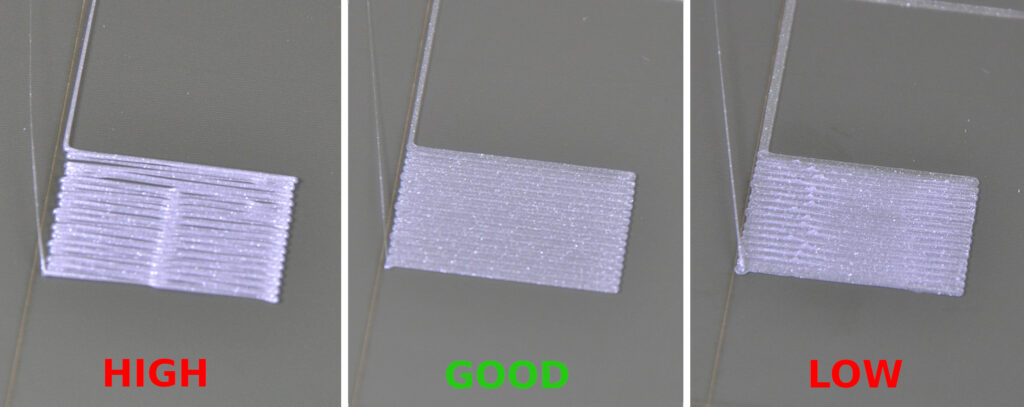
If you are just starting your journey, it may be helpful to review our guide on 3D printing for absolute beginners to ensure your fundamental settings are correct before diving into deep repairs.
The First Layer Fails: Bed Adhesion and Warping
The foundation of any print is the first layer. If it does not stick, the rest of the project is doomed. Warping occurs when the plastic cools too quickly, shrinks, and pulls away from the build plate.
The Quick Fix:
Check your bed leveling first. Even a fraction of a millimeter can be the difference between success and failure. Beyond leveling, temperature management is key. For those struggling with specific materials, learning the easiest way to stop 3d print warping for PLA, PETG, and ABS can save hours of wasted filament.
Pro Tip: High-quality filament matters. Using premium options like those from COEX LLC ensures consistent diameter and better adhesion properties. Use coupon code 3DPRINTINGBYKEVIN at checkout for a 15% discount on your order.
The Dreaded Spaghetti: Bed Leveling and Detachment
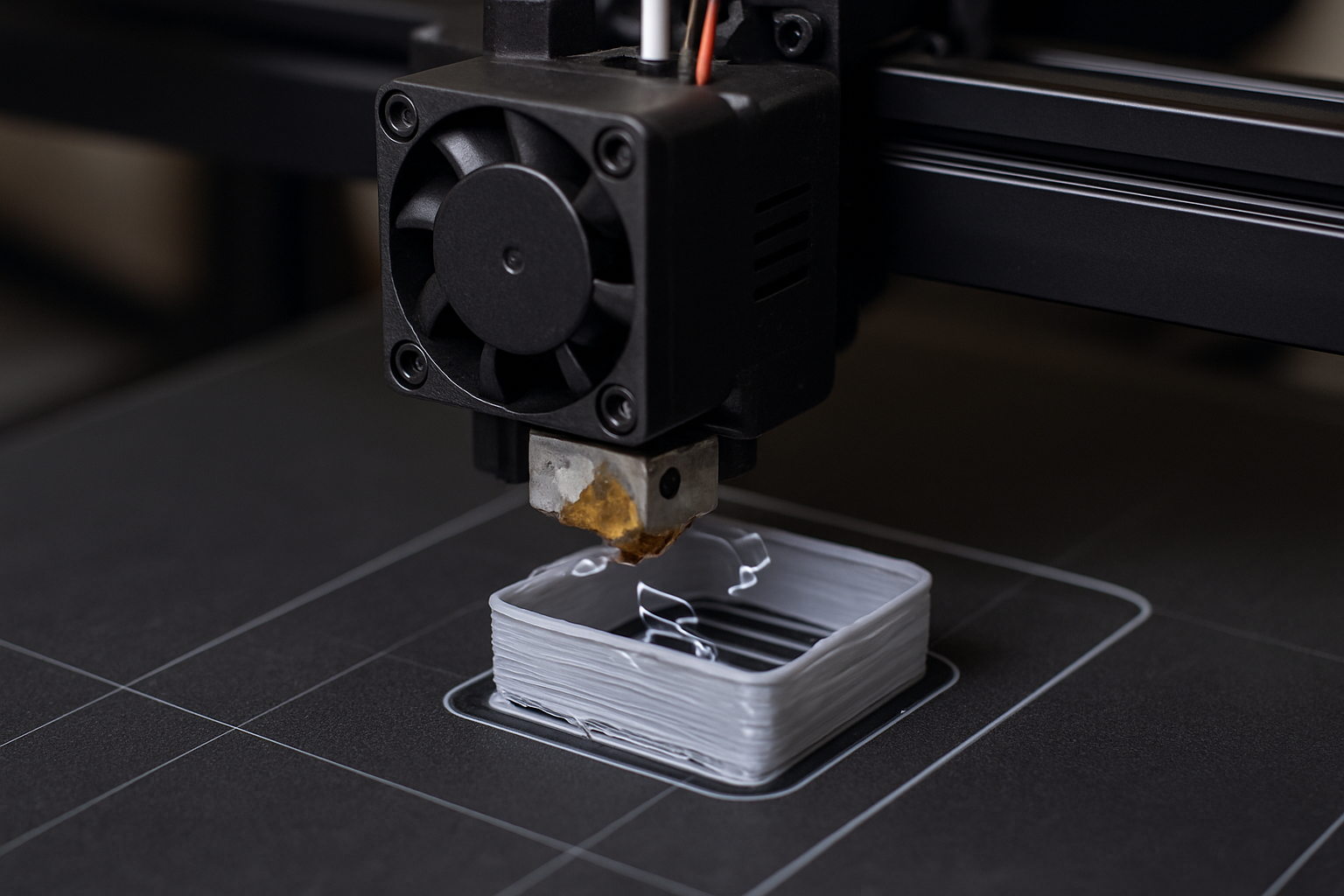
Spaghetti happens when the print detaches from the bed and the printer continues to extrude plastic into thin air. This is often a symptom of poor calibration.
The Quick Fix:
Perform a manual or automatic bed level test. Many makers overlook the impact of a slightly skewed gantry or a loose belt. Implementing the calibration trick that makes any 3D printer perform better is often the fastest way to eliminate detachment issues permanently.
Stringing and Oozing: Retraction and Heat
Stringing looks like cobwebs between different parts of your print. This happens when plastic continues to leak from the nozzle during “travel moves.”
The Quick Fix:
- Increase Retraction: Tell your software to pull the filament back further when moving.
- Lower Temperature: If your nozzle is too hot, the plastic becomes too fluid.
- Slow Down: Sometimes, speed is the enemy. You might be surprised by what happens when you slow your 3D printer down, as it often results in much cleaner surface finishes.
Under-Extrusion: Thin Layers and Gaps
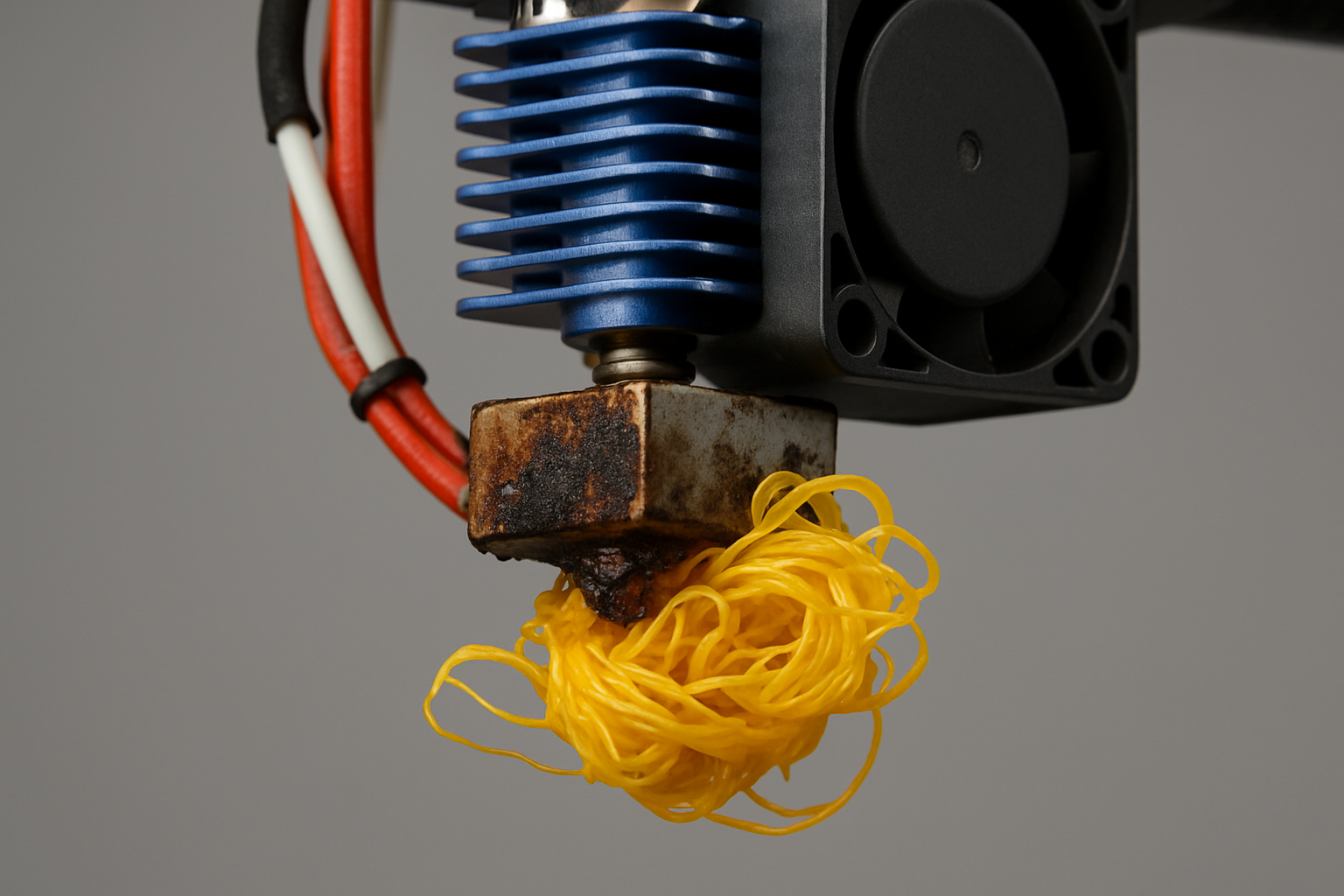
If your print looks porous or has missing layers, you are dealing with under-extrusion. This is typically caused by a partial clog or a slipping extruder gear.
The Quick Fix:
Check your nozzle for debris. Often, a “cold pull” can clear the obstruction. If the hardware is clear, ensure your software settings match your filament diameter. Mastering the transition from model to masterpiece requires a deep understanding of how slicer settings affect physical output.
Essential Tools for Quick Fixes
Having the right hardware on hand reduces downtime. If you are serious about the hobby, there is the $15 tool every 3D printer owner should have that simplifies nozzle maintenance and bed cleaning.
Furthermore, if your current machine is consistently failing despite repairs, it may be time for an upgrade. Systems from Creality are known for their massive community support and ease of repair. For those looking to move into the design phase, capturing real-world objects with a 3DMakerpro Scanner can bypass the difficulties of designing 3D objects using software from scratch.
| Problem | Primary Cause | Immediate Solution |
| Warping | Poor Bed Adhesion | Clean bed; check leveling; use brim |
| Stringing | High Temp / Low Retraction | Lower temp by 5C; increase retraction |
| Under-Extrusion | Clogged Nozzle | Perform cold pull; check extruder tension |
| Layer Shifting | Loose Belts | Tighten X/Y axis belts |
Frequently Asked Questions
Why is my 3D printer nozzle dragging across the print?
This is usually caused by an incorrect Z-offset or over-extrusion. Ensure your bed is leveled and calibrate your E-steps to ensure the printer isn’t putting down more plastic than necessary.
How often should I level my 3D print bed?
For manual beds, check leveling every 3 to 5 prints. If you have moved the printer or changed the nozzle, you must re-level immediately.
Does filament quality really affect print success?
Yes. Cheap filament often has inconsistent diameters, leading to clogs and poor surface finish. Using reputable brands like COEX helps eliminate variables during troubleshooting.
Summary: Success Through Consistency
Fixing 3D printing problems quickly is about systematic checks rather than random adjustments. Start with the bed, check your temperatures, and ensure your filament is dry and high-quality. With a few minor calibrations, you can transform a frustrating hobby into a streamlined production line.
Affiliate Disclosure: This post contains affiliate links. If you purchase through links to Creality, 3DMakerpro, or COEX, I may receive a small commission at no extra cost to you. Use code 3DPRINTINGBYKEVIN at COEX for 15% off.