
Most “mystery failures” aren’t mysterious. They’re predictable.
A failed print usually begins before you hit Start—when the bed is slightly off, the filament is wetter than it looks, the first layer is rushed, or the slicer is quietly set to betray you at hour six.
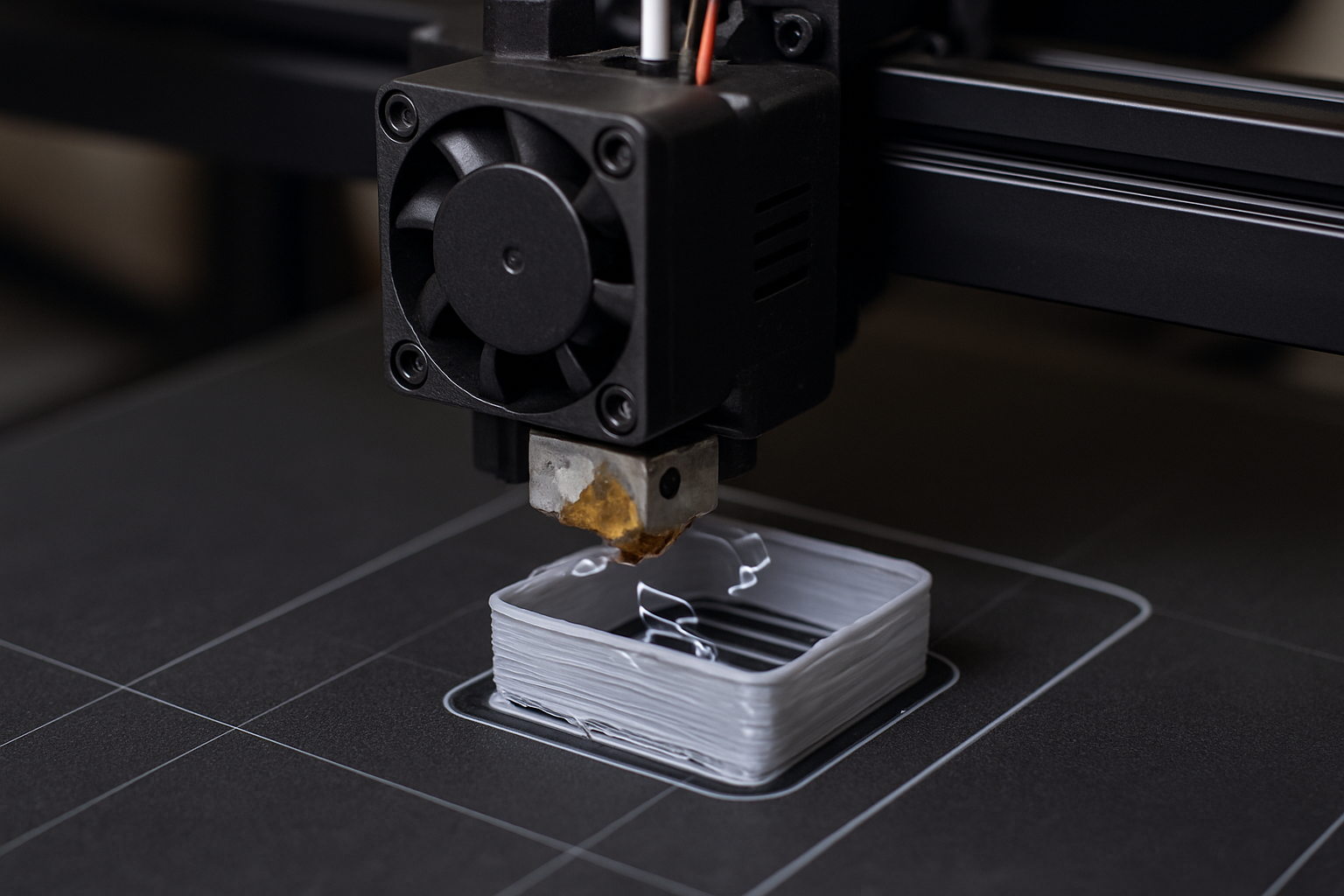
This post is a practical system for preventing failed 3D prints before they start. Not theory. Not wishful thinking. A repeatable pre-print routine that saves filament, time, and the special kind of rage that makes you stare at a spaghetti nest like it personally insulted your family.
And because this is 3dprintingbykevin.com, we’ll keep it clean: clear checks, calibration you can trust, and a few smart, buyer-intent upgrades that actually move the needle.
3D Printing for Absolute Beginners.
Then bookmark this post as your “prevent-failure” checklist.
Why Failed Prints Happen (And Why They Repeat)
When prints fail “randomly,” it’s usually because your process is random.
3D printers are consistent machines. The randomness comes from variables: temperature swings, inconsistent filament diameter, dirty build plates, belts slowly loosening, slicer profiles drifting, or a printer that’s fast enough to outrun its own cooling.
The good news is that most failures fall into a handful of categories. Fix the category, not the symptom, and your success rate jumps fast.
The 2-Minute Pre-Print Ritual That Saves the Most Filament
If you do nothing else, do this. It’s the fastest way to stop failures before the first layer even exists.
Step 1: Confirm the build plate is actually clean
A “looks clean” plate can still be coated in finger oils and invisible residue. That residue turns into weak adhesion, curling edges, and first-layer chaos.
Use warm water + dish soap for a reset when things get weird. For quick wipes, use isopropyl alcohol (IPA) if your surface type supports it. Then avoid touching the print area like it’s a crime scene.
Step 2: Do a fast first-layer sanity check
You’re not calibrating the entire printer here. You’re checking whether the first layer will behave.
Start the print and watch the first 30–60 seconds. If the line looks too round (not squished enough), you’ll get poor adhesion. If it looks scraped thin, you risk clogs, elephant’s foot, and tearing.
Step 3: Verify the filament path is smooth
Before a long print, pull 6–12 inches of filament through by hand (or with the printer’s load function). If it feels grabby, brittle, or inconsistent, fix that now—because a mid-print feed failure wastes the most plastic and the most time.
Want the calibration shortcut that prevents “invisible” failures?
Read this next: The Calibration Trick That Makes Any 3D Printer Perform Better. It’s the fastest path to consistent first layers, accurate extrusion, and fewer surprise disasters.
Prevent the Big Three Failure Modes
1) First-layer failure (adhesion, leveling, and Z-offset)
If the first layer is wrong, everything above it is a fancy tower built on a bad foundation.
Common signals you’re about to waste filament:
• Corners lifting early
• Lines not sticking evenly across the bed
• “Perfect” adhesion in one corner, “nope” adhesion in another
• The nozzle dragging printed lines like a rake
The prevention move is simple: get your bed leveling and Z-offset consistent, then stop touching it constantly. Most printers fail because the user “micro-adjusts” forever instead of locking in one good baseline.
Warping is part of this too. If you’re fighting curling edges or big parts lifting, use this guide: The Easiest Way to Stop 3D Print Warping (PLA, PETG, ABS).
2) Extrusion failure (under-extrusion, clogging, and inconsistent flow)
This is the silent print-killer. It starts as “slightly rough walls” and ends as a print that looks fine until it suddenly doesn’t.
Prevent it by controlling the causes:
Filament condition: Wet filament can pop, hiss, string, and clog. If you hear sizzling or see bubbles, treat moisture as the suspect.
Flow consistency: If your filament diameter is inconsistent, your extrusion is inconsistent. Even “good” filament can vary a bit. Measuring and adjusting in your slicer reduces artifacts and improves reliability—especially on long prints.
Nozzle health: A partially clogged nozzle can still print… badly. If you’ve been running abrasive filament, a worn nozzle can also “fake” a clog by changing flow characteristics.
Filament that behaves is the cheapest “upgrade” you can buy
When your prints fail, the filament brand matters more than people like to admit—especially for consistency across a spool.
I recommend checking out COEX here:
COEX Filament (use code 3DPRINTINGBYKEVIN for 15% off).
3) Speed and cooling failure (the printer outruns physics)
Fast printing is fun. Failed fast printing is just expensive.
If you’re printing too fast for your hotend, you can hit the point where the machine physically can’t melt plastic fast enough. That shows up as thin walls, gaps, weak layers, and inconsistent top surfaces—especially on long prints.
If you want the counterintuitive truth about speed, read this: What Happens When You Slow Your 3D Printer Down? The Results Surprise Most Makers.
A practical prevention rule: if you’re printing a part you actually care about, slow it down slightly, increase cooling appropriately, and prioritize consistent extrusion over “headline speed.”
Slicer Settings That Prevent Failures (Without Getting Nerdy in a Bad Way)
Slicer profiles are where good prints go to die quietly.
Here are the settings that prevent the most failures with the least drama:
First layer settings that actually matter
First layer height: Slightly thicker first layers are more forgiving.
First layer speed: Slow it down so adhesion has time to happen.
First layer temperature: A small bump can help adhesion (don’t overdo it).
Initial fan behavior: Too much fan too early can weaken adhesion.
Supports: prevent “support failure” before it starts
Most support failures aren’t “supports are bad.” They’re “supports weren’t designed for that geometry.”
Prevention tactics:
• Use supports only where needed (paint-on supports if your slicer supports it).
• Increase support interface quality for delicate overhangs.
• Slow down overhang speeds instead of drowning everything in supports.
Infill and top layers: stop the “it looked fine until the top” failure
Top-layer issues often come from a mismatch between infill density, extrusion consistency, and layer cooling.
Prevention tactics include adding one extra top layer, slightly increasing infill for large flat tops, and ensuring flow is calibrated.
How to 3D Print Like a Pro: From Model to Masterpiece
Hardware Checks That Stop “Random” Failures
Some failures are settings. Some are physics. Some are a loose belt laughing at your optimism.
Belts and pulleys
If layer shifts or sudden misalignment show up, treat belt tension and pulley set screws as your first suspects. These issues can appear “out of nowhere” after weeks of normal printing.
Bed stability
If your bed has play, wobble, or inconsistent resistance across travel, your leveling and Z-offset will drift. Prevent it by tightening what should be tight and fixing what’s worn.
Nozzle and hotend maintenance
Prevent clogs and inconsistent flow with basic maintenance. If you print frequently, build a routine instead of waiting for a disaster.
The simplest “save my print” tool is also one of the cheapest
If you only buy one small tool to prevent failures, start here:
The $15 Tool Every 3D Printer Owner Should Have.
Filament Waste Prevention for Real Life (Not Lab Conditions)
Real life is dusty. Humid. Busy. And it doesn’t care about your “perfect profile.”
Here are the practical habits that prevent the most wasted spools:
Keep filament dry: Store spools sealed with desiccant. If you live in a humid area or print often, a dryer is less “optional” than it sounds.
Label your spools: Write purchase date and material type. When a spool starts acting weird, you’ll know if it’s old, moisture-exposed, or from a batch that doesn’t match your usual settings.
Stop trusting “default” temperatures: Use manufacturer ranges as a starting point. Then lock in what works for your printer and environment.
When Upgrades Actually Make Sense (Transactional Buyer Intent, No Hype)
Not every problem needs new gear. But some gear genuinely prevents failure and saves money long-term.
When a printer upgrade is the right move
If your printer struggles with consistency, bed leveling stability, or reliable extrusion—and you’ve already done calibration—then yes, a more capable machine can reduce failures dramatically.
If you’re browsing Creality options, here’s my link: Creality deals and printers.
When scanning and reverse-engineering reduces wasted prints
A surprising source of wasted filament is bad fitment—printing a part that almost fits, then reprinting it three more times because the measurements were guesswork.
If you build parts meant to match real objects (brackets, mounts, housings), a scanner can reduce “trial-and-error printing.” Here’s my 3DMakerpro (Global) link: 3DMakerpro scanners.
The “No-Waste” Print Setup (Quick Buyer-Friendly Bundle)
If you’re ready to reduce failures with fewer experiments and more consistency, here’s the practical combo that pays off fastest:
• Reliable printer ecosystem: Creality
• Fitment accuracy + fewer reprints: 3DMakerpro (Global)
• Consistent filament (15% off): COEX (code: 3DPRINTINGBYKEVIN)
A Simple “Prevent Failed Prints” Checklist You Can Reuse
This is the checklist I’d tape to the wall if printers came with emotional support brackets.
Before you start:
Clean plate. Confirm Z-offset. Confirm filament feeds smoothly. Check the slicer profile is the one you trust.
First minute of printing:
Watch first layer lines. Look for consistent squish. Stop early if it’s wrong—saving filament is about stopping fast, not hoping harder.
For long prints:
Use stable filament storage. Confirm nozzle condition. Reduce speed slightly if the part matters. Prioritize cooling and flow consistency.
• Acquiring the Skills to Design 3D Objects Using Software
• How to 3D Print Like a Pro: From Model to Masterpiece
• The Calibration Trick That Makes Any 3D Printer Perform Better
Waste Less by Being Predictable
Most filament waste isn’t caused by “bad luck.” It’s caused by skipping the same few checks that prevent the same few failures.
Make your process predictable, and your printer becomes predictable.
That’s the whole game: fewer surprises, fewer reprints, and more of that quiet satisfaction when a print finishes clean and you don’t even feel the need to watch it like a hawk.
FAQ: Preventing Failed 3D Prints
What is the most common cause of failed 3D prints?
First-layer problems are the most common cause—usually from a dirty build plate, incorrect Z-offset, or inconsistent bed leveling. Fixing first-layer adhesion prevents a huge percentage of failures.
How do I stop wasting filament on failed prints?
Use a short pre-print routine: clean the plate, verify Z-offset, confirm smooth filament feeding, and watch the first 60 seconds. If the first layer is wrong, stop immediately and correct it. Early stopping saves the most filament.
Does wet filament really cause failed prints?
Yes. Moisture can cause popping, bubbling, stringing, weak layers, inconsistent flow, and clogs. Dry storage and a filament dryer can dramatically reduce print failures in humid environments.
Should I print slower to prevent failures?
Often, yes—especially for long prints, detailed parts, and materials prone to warping. Slowing down can improve extrusion consistency and layer bonding, and it gives cooling time to do its job.
What slicer settings help prevent print failures the most?
First layer speed and height, initial fan behavior, and temperature stability are the biggest “failure prevention” settings. After that, focus on overhang speeds, top layers, and ensuring your profile matches the material.
When should I upgrade my printer to reduce failed prints?
If you’ve calibrated properly and still fight frequent failures due to bed instability, inconsistent extrusion, or mechanical issues, an upgrade can reduce wasted filament by improving reliability and repeatability.
