
Layer shifts are brutal.
One minute your print looks perfect. The next, it’s sliding sideways like it gave up halfway through. Hard edges turn into stair steps. Clean walls become jagged. And that 14-hour print? Trash.
If you’re dealing with 3D printer layer shifting, don’t panic. In most cases, the fix takes less than two minutes.
Let’s walk through the fast alignment trick that saves prints, protects your hardware, and keeps your workflow moving.
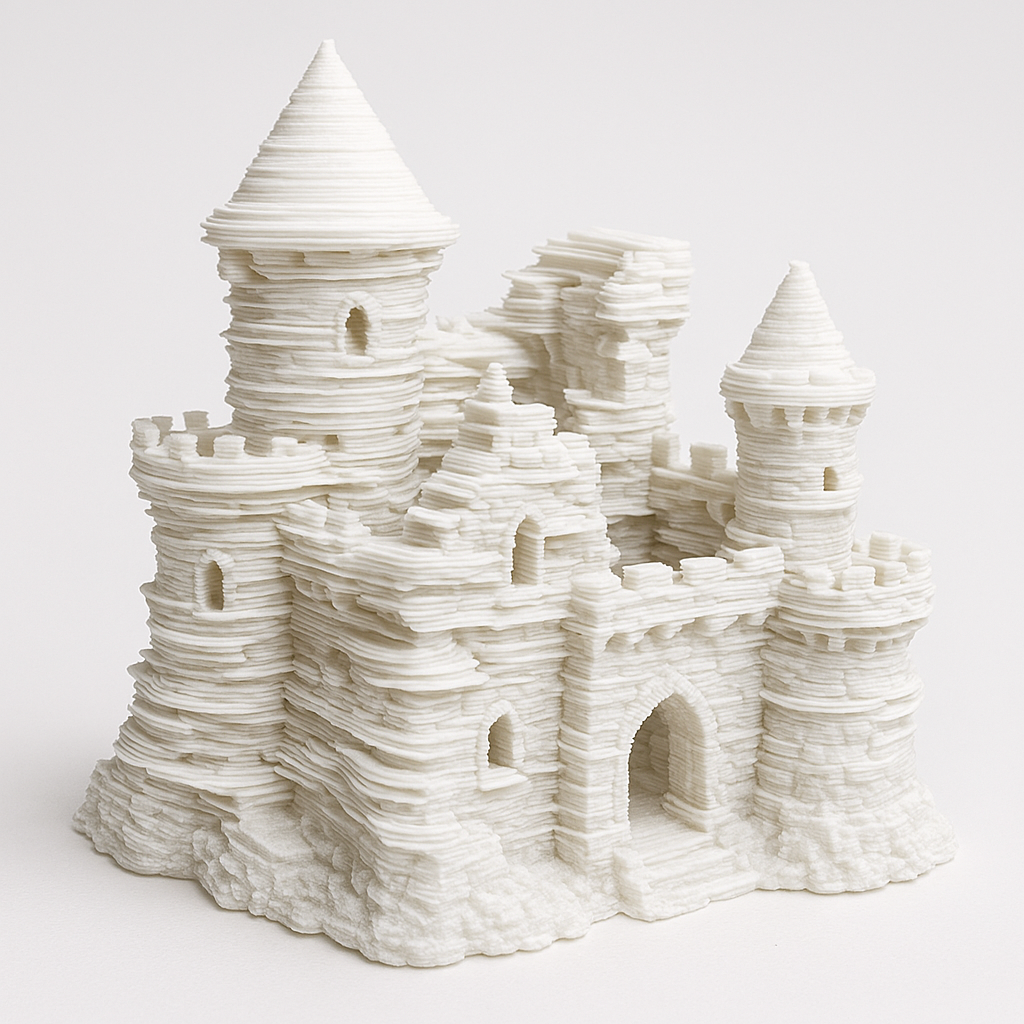
What Is a Layer Shift in 3D Printing?
A layer shift happens when your printer’s X or Y axis loses position mid-print. Instead of stacking layers directly on top of each other, the printer shifts sideways and continues printing in the wrong place.
Common symptoms:
- Sudden horizontal offset
- Walls misaligned partway up
- Sharp step or “jump” in the model
- Loud grinding or belt slipping noise
Layer shifts are almost always mechanical. That’s good news. Mechanical problems are usually fixable.
If you’re new to troubleshooting, start with this foundational guide:
3D Printing for Absolute Beginners
The 2-Minute Alignment Trick That Fixes Most Layer Shifts
Here’s the fast method I use when a printer starts shifting layers.
Step 1: Power Off the Printer
Always start here. You want zero motor resistance.
Step 2: Manually Move the Print Head and Bed
Gently slide:
- The X-axis (left to right)
- The Y-axis (bed forward and back)
You’re checking for:
- Resistance
- Clicking
- Catching
- Grinding
- Sudden tight spots
Movement should feel smooth the entire way.
Step 3: Check Belt Tension With a Light Pinch
Pinch the X and Y belts.
You want:
- Firm tension
- Slight flex
- A low “twang” sound when plucked
You do NOT want:
- Slack belts
- Visible sagging
- Guitar-string tightness
Loose belts are the number one cause of layer shifts.
Step 4: Re-Square the Gantry
If your printer has dual Z rods or adjustable gantry rails, make sure both sides are level.
A slightly tilted gantry creates uneven drag, which can cause skipped steps.
Step 5: Tighten Motor Mount Screws
Check:
- Stepper motor screws
- Pulley set screws
- Belt tensioners
Loose pulleys cause silent slipping. And slipping causes shifts.
That’s it. Five quick checks. Most printers are back to perfect after this.
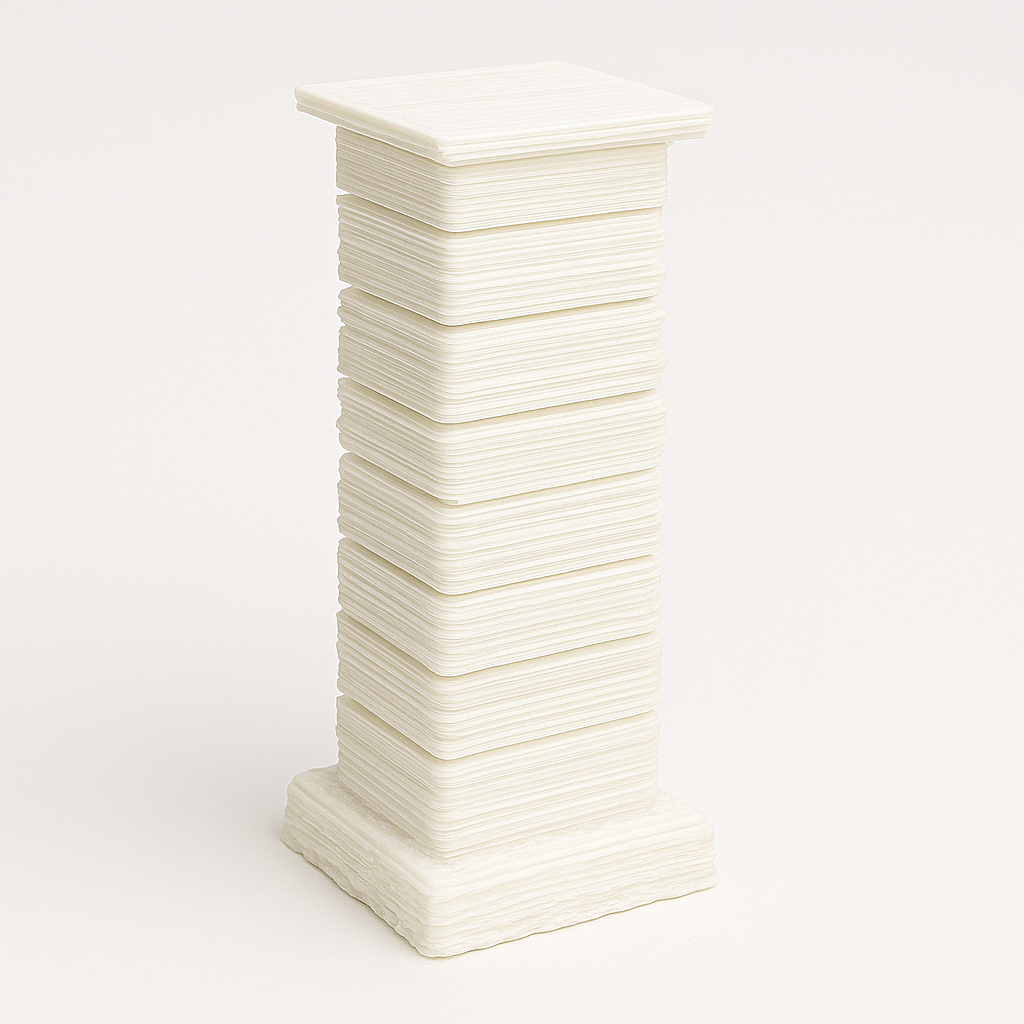
Why This Trick Works for Layer Shifts
Layer shifts happen when the motor tries to move but physically can’t.
Causes include:
- Belt slack
- Overtightened eccentric nuts
- Debris in rails
- Bent rods
- Overly aggressive acceleration settings
If your machine can move freely and your belts are properly tensioned, you eliminate 80 percent of common shift issues.
For deeper tuning improvements, read:
The Calibration Trick That Makes Any 3D Printer Perform Better
When It’s Not Mechanical: Speed and Acceleration Problems
If everything feels smooth but layer shifts continue, your settings may be too aggressive.
High:
- Print speeds
- Acceleration
- Jerk settings
…can push stepper motors beyond their limits.
Slowing down often fixes mysterious shift issues.
This experiment surprised a lot of makers:
What Happens When You Slow Your 3D Printer Down?
Budget Printers vs Premium Machines: Does It Matter?
Short answer: Yes. But not the way you think.
Entry-level printers can produce excellent results. They just require more mechanical awareness.
If you’re using a Creality machine, proper belt tension and gantry alignment are especially important. You can explore current models here:
My Creality (affiliate): https://tidd.ly/3KUghXJ
Higher-end printers often include:
- Automatic belt tension systems
- Rigid frame construction
- Advanced motion control boards
But even premium machines can shift layers if belts loosen over time.
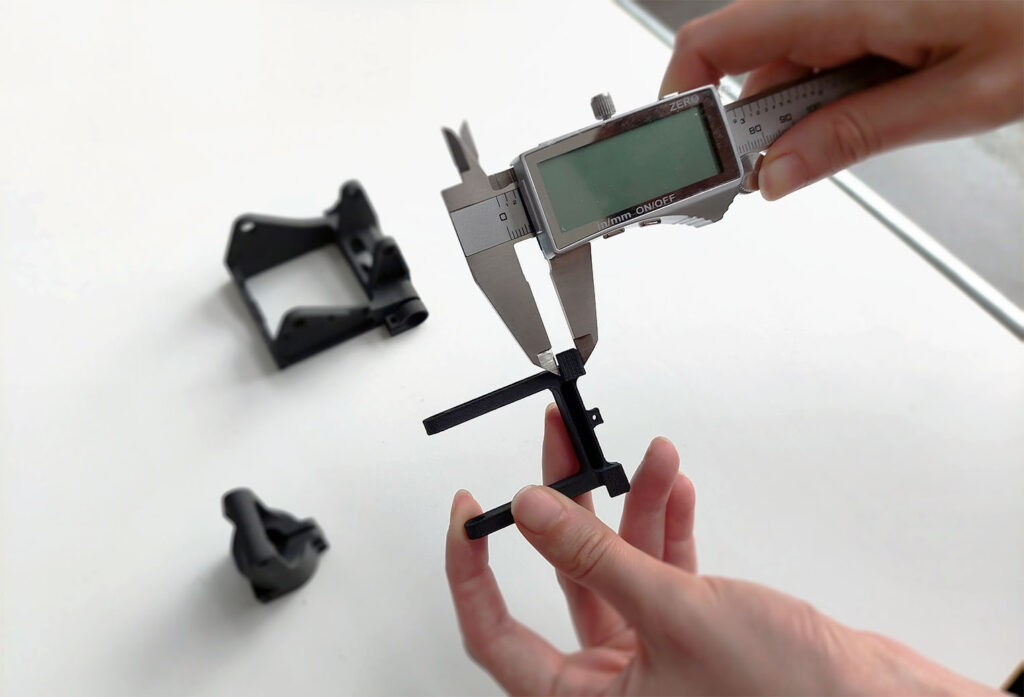
The $15 Tool That Prevents 90% of Alignment Issues
If you don’t already own digital calipers, fix that.
This inexpensive tool helps you:
- Measure gantry height evenly
- Check belt alignment
- Verify print dimensions
- Diagnose skew
Full breakdown here:
The $15 Tool Every 3D Printer Owner Should Have
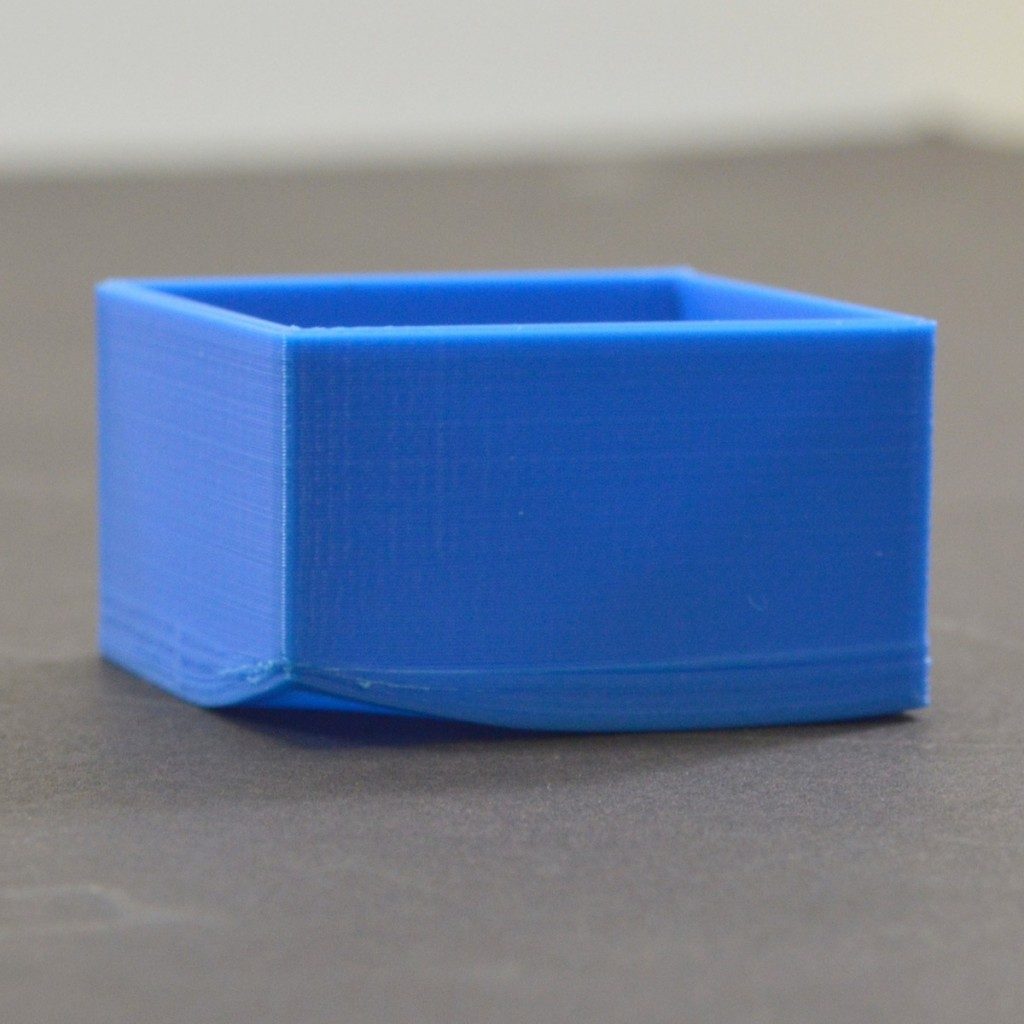
Bonus: Warping Can Trigger Layer Shifts
If your print lifts off the bed, it can collide with the nozzle. That impact may skip motor steps and cause a shift.
If you’re printing PLA, PETG, or ABS, this guide helps stop that problem at the source:
The Easiest Way to Stop 3D Print Warping
Upgrading? Consider Hardware Stability
If repeated mechanical issues are slowing you down, it may be time to upgrade.
Options worth comparing:
- My Creality printers: https://tidd.ly/3KUghXJ
- 3DMakerpro (Global) 3D scanners: https://tidd.ly/49ziphJ
- COEX premium filaments: https://coex3d.com/
Use coupon code: 3DPRINTINGBYKEVIN for 15% off
Better hardware means:
- Stronger frames
- More consistent motion
- Better belt systems
- Higher reliability
That translates into fewer failed prints.

How Alignment Connects to Better Design Results
Mechanical precision affects design precision.
If you’re learning to create your own models, dimensional accuracy matters even more.
Start here:
Acquiring the Skills to Design 3D Objects Using Software
And when you’re ready to refine your entire workflow:
How to 3D Print Like a Pro: From Model to Masterpiece
Quick Troubleshooting Checklist
Before your next long print:
- Belts firm but not over-tight
- Gantry level
- Rails clean
- Pulleys secure
- Speed reasonable
- Print bed adhesion solid
Two minutes of checking beats 12 hours of wasted filament.
FAQ: Fixing 3D Printer Layer Shifts
What causes layer shifts in 3D printing?
Loose belts, motor skipping, mechanical resistance, or overly aggressive speed settings are the most common causes.
Can overheating stepper drivers cause layer shifts?
Yes. If drivers overheat, they may temporarily shut down, leading to skipped steps. Ensure proper cooling.
Should belts be very tight?
No. Over-tight belts strain motors and bearings. They should feel firm with slight flex.
Does firmware affect layer shifts?
Rarely. In most cases, the issue is mechanical, not software.
Layer shifts feel random. They’re not.
They’re mechanical warnings. And they’re usually easy to fix.
Run the 2-minute alignment check before blaming your slicer, firmware, or filament.
You’ll save time. You’ll save material. And your prints will stack clean again.
If you want to build a more reliable, frustration-free printing setup, start working through the internal guides linked above. Small mechanical habits create professional results.
Affiliate Disclosure
This post contains affiliate links. If you purchase through these links, I may earn a small commission at no additional cost to you. I only recommend products I believe provide real value to makers.
If you found this helpful, explore the related guides above and tighten up your printer before your next big project. Your future self will thank you.