
You hear it once. Click. Then again. Click. Click. Click.
The printer is still moving, but the filament coming from the nozzle is getting thinner—or has stopped completely. That sound can make a clogged nozzle feel like the obvious answer.
Sometimes it is. But after troubleshooting enough FDM printers, I have learned to treat extruder clicking as a warning that filament is meeting too much resistance, not as proof that the nozzle itself is clogged.
A clicking extruder usually means the drive system is trying to push filament harder than the filament path will allow. Check the spool and filament path first, then verify the correct material temperature and print profile. If extrusion remains weak or intermittent, investigate a partial hotend or nozzle restriction. A cold pull can help on compatible hotends, but it should not be the automatic first move on every printer.
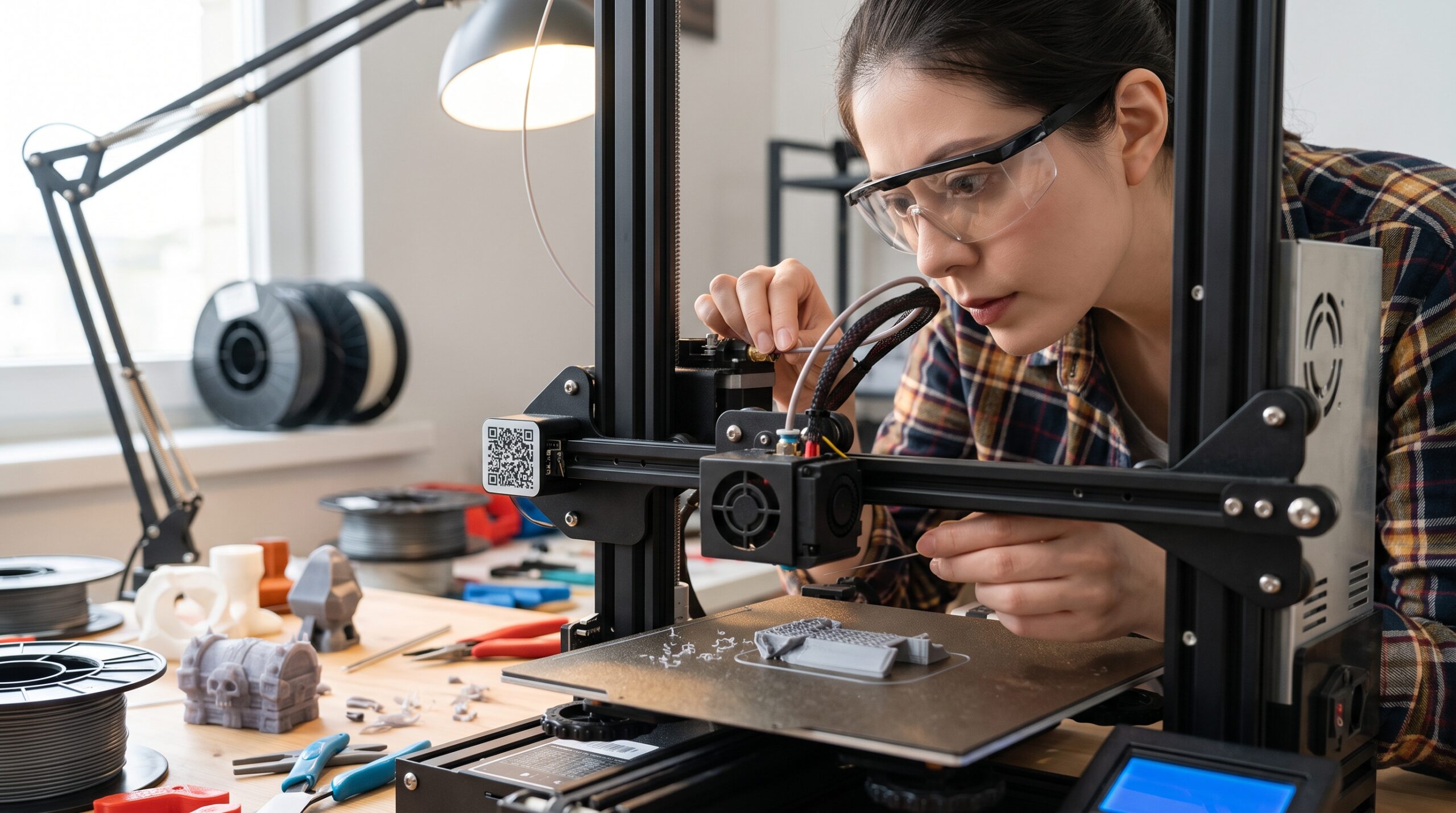
Safety note: Hotends, nozzles, heater blocks, and nearby components can cause serious burns. Follow the maintenance procedure for your exact printer before inserting tools, removing a nozzle, opening an extruder, or working around heated components.
First: Clicking Does Not Automatically Mean “Clogged Nozzle”
The extruder has one basic job: grip the filament and move it toward the hotend. When the force required becomes too high, the drive system can slip, skip, grind the filament, or make the familiar clicking or knocking sound.
The restriction may be farther upstream than you think.
This distinction matters because tearing apart a perfectly good hotend does not fix a tangled spool—and increasing extruder tension does not fix a blocked melt path.
Start outside the hotend and work inward. The easiest thing to inspect should usually be the first thing you inspect.
The 10-Minute 3D Printer Clog Check
This is the sequence I would use before reaching for a wrench. It will not solve every extrusion failure in ten minutes, but it can quickly separate a simple feeding problem from a clog that needs deeper attention.
Pause or cancel the print if the extruder is repeatedly clicking and little or no plastic is coming out. Letting the drive gear chew the same section of filament can make the problem harder to diagnose.
Make sure it turns freely. Look for a strand trapped underneath another winding, a tight spool holder, excessive drag from a dry box, or filament rubbing sharply against a guide.
Look for a sharp bend, damaged PTFE tube, stuck filament sensor, debris around the drive gears, or a section of filament that has been ground flat.
Verify that the printer and slicer actually think you are using the filament that is loaded. Also confirm the installed nozzle size. A high-flow profile combined with ordinary filament can create more melt demand than the material or hotend can sustain.
If it happens mainly during the first layer, inspect nozzle-to-bed spacing and calibration. If the first layer is clean and clicking starts only during fast infill or high-flow moves, melt capacity or temperature deserves attention.
Using your printer’s normal load or extrusion procedure, heat the hotend to an appropriate temperature for the installed material and request a small purge. Do not force cold filament through the hotend.
A smooth, continuous purge suggests the nozzle may not be badly restricted. Intermittent, unusually thin, or absent flow makes a hotend restriction more likely.
If extrusion works at a slower rate but fails as speed rises, the problem may be excessive volumetric demand rather than debris physically blocking the nozzle.
If a partial restriction still looks likely, consult the maintenance instructions for your exact hotend. Depending on the printer, that may involve a cold pull, cleaning pin, automatic cleaning routine, hotend removal, or another manufacturer-specific procedure.
Once flow looks normal, print a short extrusion or calibration test. Confirm the symptom is gone before restarting an important job.
What the Clicking Pattern Can Tell You
| What you observe | Likely direction | Check first |
|---|---|---|
| Clicking immediately Very little extrusion from the start |
Blocked path, wrong temperature, jammed extruder, or nozzle too close | Spool, filament path, profile, Z position, purge |
| Clicks on fast sections Slower walls print normally |
Melt-flow limit or temperature mismatch | Speed, volumetric flow, filament profile, temperature |
| Starts well, then fades Extrusion deteriorates during a long print |
Heat creep, progressive restriction, cooling issue, filament drag | Hotend cooling, spool path, manufacturer troubleshooting |
| First layer only Later extrusion is better |
Nozzle-to-bed restriction or first-layer setup | Calibration, correct plate/profile, Z-offset if applicable |
| Grinding + no movement Filament is chewed by the gears |
Strong downstream resistance or extruder jam | Stop feeding, remove damaged section, inspect complete path |
| Purge looks clean Problem appears only in the print |
Slicer/profile/flow/retraction issue more likely | Return to a known-good profile and compare settings |
When a Cold Pull Makes Sense
A cold pull uses softened filament to pick up residue from inside a compatible nozzle and hotend. It can be very effective when the restriction is partial and filament can still move through the hotend.
But this is where I would update a lot of older 3D-printing advice: do not assume one cold-pull temperature or procedure works for every printer.
Modern machines use different heatbreaks, nozzle assemblies, coatings, automatic routines, extruder geometries, and hotend designs. Some manufacturers provide an exact cold-pull procedure for particular models. Others recommend a different cleaning method.
- Check the instructions for your exact printer and nozzle.
- Use the recommended filament and temperature sequence.
- Do not force filament through a completely blocked hotend.
- Do not pull aggressively against a fragile or unsupported hotend assembly.
- Do not assume a cleaning technique approved for one nozzle type is approved for another.
Needle Cleaning vs. Cold Pull vs. Hotend Disassembly
| Method | Best use | Main limitation |
|---|---|---|
| Controlled purge | Initial flow test and minor material transition | Cannot remove every physical obstruction |
| Cleaning needle | Printer models whose manufacturer explicitly supports nozzle-pin cleaning | May move debris rather than remove its root cause |
| Cold pull | Compatible hotends with a partial clog | Procedure varies by printer and nozzle |
| Extruder inspection | Filament is ground, stuck, or cannot move through the drive system | May require model-specific disassembly |
| Hotend/nozzle service | Complete blockage, damaged component, persistent restriction | Greater risk of burns, wiring damage, leaks, or incorrect reassembly |
The goal is not to choose the most aggressive repair. It is to choose the least invasive step that matches the evidence.
What If the Nozzle Isn’t Clogged?
1. The spool cannot feed freely
Before opening anything, physically watch the spool while the printer feeds filament. A knot, crossed winding, tight dry-box outlet, poorly positioned spool, or excessive tubing friction can mimic a clog surprisingly well.
2. You’re asking for more flow than the hotend can deliver
Today’s desktop machines can move extremely fast, but machine speed and sustainable melt flow are not the same specification.
If the problem appears mainly during fast infill, thick layers, wide lines, or large-nozzle printing, read my guide to what 500 mm/s really means in actual printing.
If slowing the print immediately restores clean extrusion, you have learned something important: the hotend may not be obstructed at all. You may simply be exceeding the material/hotend combination’s reliable flow.
3. The filament profile is wrong
A slicer profile carries assumptions about temperature, flow, cooling, retraction, and speed. Loading one material while slicing for another can create a problem that looks mechanical.
Return to a known-good manufacturer profile before changing five individual settings.
4. The nozzle is too close to the bed
If clicking begins as soon as the first layer starts, inspect the first layer before blaming the hotend. A severely restricted nozzle-to-bed gap can make extrusion difficult.
Use the 3D printer calibration guide if the problem is concentrated at the build surface.
5. Heat creep develops during longer prints
Heat should remain concentrated where the hotend is designed to melt filament. If heat travels too far upward, filament can soften where it should still be solid, increasing resistance and eventually interrupting extrusion.
This pattern often looks different from an immediate blockage: the printer may begin normally and deteriorate later.
Don’t “Fix” Clicking by Cranking Up Extruder Tension
If the filament cannot move through the hotend, squeezing it harder with the drive gears does not remove the restriction. It can simply grind the filament more aggressively.
Extruder tension matters on printers that provide an adjustment, but treat it as a machine-setting check—not a universal cure for clicking.
Also Avoid Random Flow Compensation
If a printer is under-extruding because the filament path is restricted, increasing flow tells the extruder to push more material into the restriction. That can make the clicking worse.
Diagnose the cause first. Tune extrusion only after the machine can feed material consistently.
For a deeper symptom-by-symptom path, see How to Fix Under-Extrusion Without Buying New Parts.
A Better Way to Prevent Repeat Clogs
- Keep the filament path clean and low-friction.
- Use material profiles appropriate for the actual filament.
- Keep filament dry when the material requires it.
- Inspect drive gears for filament dust and debris.
- Confirm hotend cooling is working properly.
- Avoid exceeding the hotend’s proven melt-flow capability.
- Use the correct nozzle for filled or particulate-containing materials.
- Follow the manufacturer’s maintenance procedure instead of applying one generic routine to every machine.
Consistent filament helps remove one variable from troubleshooting, but buying a new spool is not a repair for a mechanical clog. Diagnose the printer first.
I partner with COEX 3D and use their filament in my own 3D-printing work. If you decide you need material, you can visit COEX 3D through my partner page. My code 3DPRINTINGBYKEVIN provides 15% off eligible orders.
Affiliate disclosure: I may earn a commission from qualifying purchases at no additional cost to you.
Use the P.R.I.N.T. Method™ When the Cause Isn’t Obvious
P — Problem: What exactly is happening? Clicking, weak extrusion, total stoppage, or only first-layer trouble?
R — Requirements: What material, nozzle, temperature range, speed, and printer profile should this job be using?
I — Interfaces: Where does filament interact with another component—spool, tube, sensor, gears, heatbreak, nozzle, or build surface?
N — Next-Best Materials & Methods: Is the next sensible test a purge, slower flow, profile reset, approved cold pull, or mechanical inspection?
T — Test & Tune: Make one controlled change and run a short test before returning to the full print.
Quick Knowledge Check
1. Does an extruder clicking sound prove the nozzle is clogged?
No. Clicking indicates excessive resistance or an extrusion-system problem. The cause can be the spool, filament path, profile, extruder, hotend, nozzle, first-layer restriction, or excessive melt-flow demand.
2. What should you check before taking the hotend apart?
Start with spool movement, tangles, filament-path resistance, the loaded material and active slicer profile, installed nozzle size, and when the clicking occurs.
3. Should every 3D printer use the same cold-pull temperature?
No. Cold-pull procedures vary by hotend, nozzle, filament, and printer design. Follow the maintenance instructions for your exact machine.
4. What does it suggest if the printer extrudes normally when slowed down?
It suggests the problem may be related to melt-flow demand, temperature, or the filament profile rather than a complete physical nozzle blockage.
Frequently Asked Questions
Why does my 3D printer click but still print?
The extrusion system may be encountering intermittent resistance while still moving some filament. Look for a partial restriction, excessive print speed or flow demand, spool drag, an incorrect temperature/profile, or a drive-system problem.
How do I know whether my nozzle is partially clogged?
A partial restriction can produce thin or inconsistent extrusion, missing sections, poor purging, or clicking while some material still exits the nozzle. Compare that behavior with spool movement and a controlled purge before assuming the nozzle itself is responsible.
Can wet filament cause clicking?
Moisture can contribute to inconsistent extrusion and poor print quality, but clicking alone is not a reliable moisture test. Popping, hissing, rough extrusion, bubbles, or sudden stringing provide additional clues. See my guide to wet filament vs. printer settings.
Should I use a nozzle-cleaning needle?
Use one only when the printer or hotend manufacturer recommends that method and the tool matches the nozzle. Do not force an oversized or unsuitable object through the nozzle.
When should I replace the nozzle?
Replacement makes sense when inspection shows wear or damage, when the nozzle is inappropriate for the material, or when the manufacturer’s troubleshooting procedure indicates replacement after cleaning fails. There is no useful universal replacement interval for every nozzle, filament, and printer.
Can heat creep cause the printer to stop extruding halfway through a print?
Yes. If filament softens too high in the hotend, feeding resistance can rise until extrusion becomes intermittent or stops. If a print begins normally and deteriorates later, inspect the hotend cooling system and follow the printer manufacturer’s heat-creep or clogging procedure.
The Takeaway: Follow the Resistance
When an extruder starts clicking, the sound is giving you useful information: the filament is not moving as easily as the printer expects.
Start with the spool. Follow the path. Verify the profile. Watch when the symptom appears. Test extrusion. Only then move into cleaning or disassembly.
That little change in troubleshooting order can save a lot of unnecessary wrench-turning—and it teaches you far more about what your printer is actually doing.
Still Fighting the Printer—or Need the Part Instead?
If the project matters more than winning another argument with the hotend, I also provide custom 3D printing, replacement-part work, prototypes, and small production runs from Northern Kentucky.
What caused the last clicking extruder you dealt with? Was it actually a clogged nozzle, or did the problem turn out to be something completely different? Add your experience in the comments—those real-world fixes can help the next maker diagnose theirs faster.
Editorial note: Troubleshooting procedures vary by printer, hotend, and nozzle design. Manufacturer documentation for the exact model should take priority over general maintenance advice when components must be heated, removed, opened, or serviced.
