
Discover why E-step calibration is the secret to fixing inconsistent extrusion and improving 3D print quality. A step-by-step guide for makers.
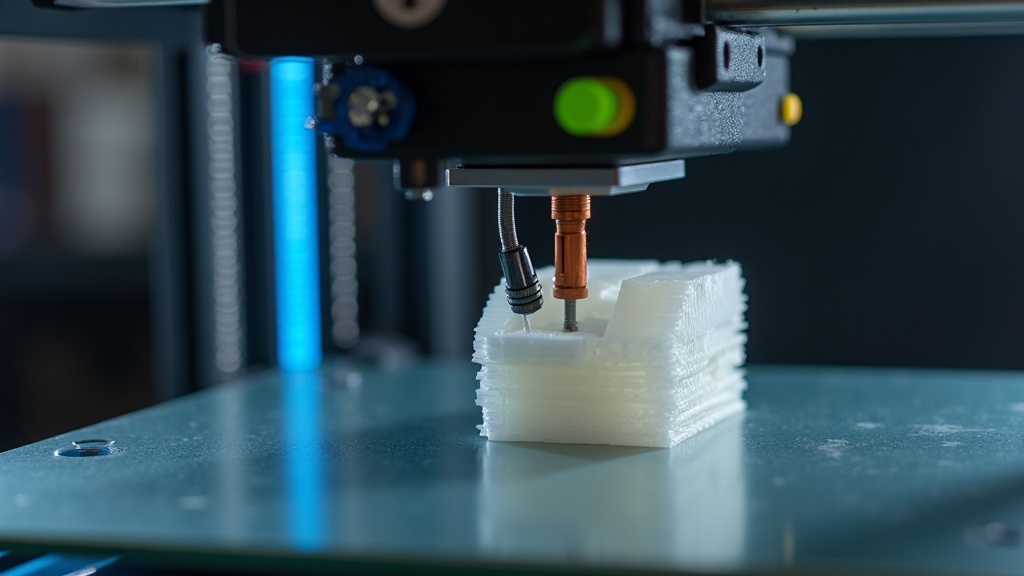
The Ghost in the Machine: Why Your Prints Look Like Swiss Cheese
You have spent hours leveling the bed. You have toggled every setting in your slicer. You have even upgraded to a high-quality machine like a Creality. Yet, your prints still come out with mysterious gaps, weak layers, or a “pitted” texture that looks more like a sponge than a solid object.
Inconsistent extrusion is the bane of every maker’s existence. It is frustrating because it often looks like a hardware failure when it is actually a communication breakdown between your printer’s brain and its muscles. If you are just starting out, you might find this especially daunting, but as I discuss in my guide on 3D printing for absolute beginners, most issues have a logical solution.
The solution most people skip? Extruder Calibration, specifically E-steps.
Disclosure
This post contains affiliate links. If you make a purchase through these links, I may earn a commission at no additional cost to you. I recommend products from Creality, 3DMakerpro, and COEX based on their quality and performance in the maker community.
What Are E-Steps and Why Do They Matter?
E-steps (Extruder steps per millimeter) tell your printer how many pulses to send to the stepper motor to move exactly one millimeter of filament. If this number is off, your printer might think it is pushing out 100mm of plastic when it is actually only pushing 92mm.
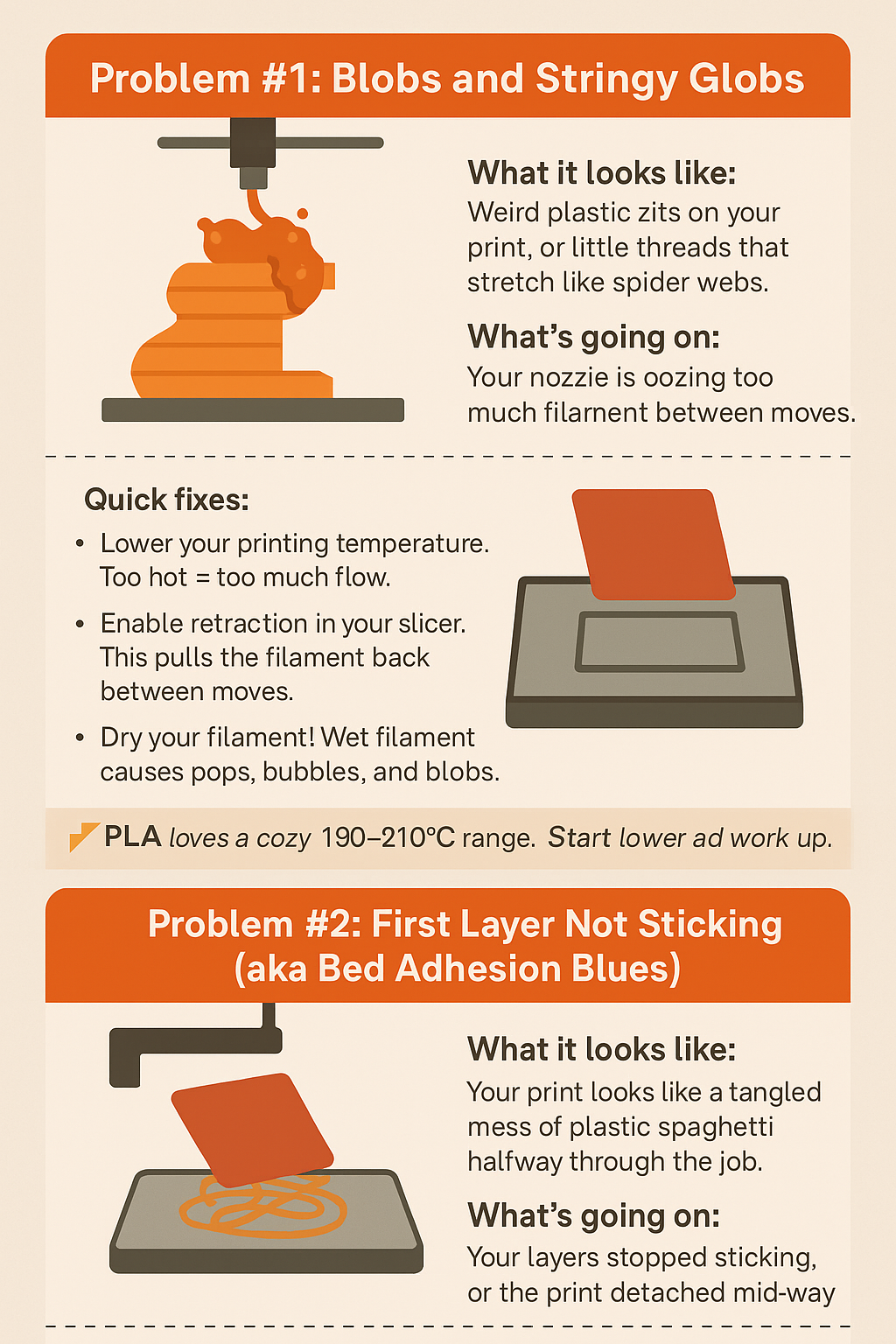
This leads to under-extrusion, poor layer adhesion, and fragile parts. Conversely, over-extrusion can cause “zits,” blobs, and dimensional inaccuracies. If you want to master the calibration trick that makes any 3D printer perform better, E-steps are your starting point.
Transactional Highlight: The Filament Factor
Even the best calibration cannot save poor-quality filament. I personally use and recommend COEX Filament because their diameter tolerances are incredibly tight. Pro Tip: Use coupon code 3DPRINTINGBYKEVIN at checkout for 15% off your order to ensure your hardware has the best materials to work with.
Step-by-Step: Calibrating Your E-Steps Like a Pro
To perform this calibration, you do not need an engineering degree, but you do need precision. This is where the $15 tool every 3D printer owner should have—a set of digital calipers—becomes indispensable.
1. The 120mm Mark
With your printer turned on and the nozzle heated to your standard printing temperature, measure 120mm of filament from the entry point of your extruder. Use your calipers to mark this spot with a fine-tip marker.
2. Command the Extrusion
Using your printer’s interface or a terminal like Pronterface, command the extruder to push 100mm of filament.
3. The Measurement
Once the motor stops, measure the distance from the extruder entry to your mark.
- If your E-steps are perfect, you should have exactly 20mm left (120mm – 100mm = 20mm).
- If you have 25mm left, your printer only extruded 95mm. You are under-extruding.
4. The Magic Formula
Use this simple calculation to find your new E-step value: (Requested Extrusion (100) / Actual Extrusion) x Current E-Step Value = New E-Step Value
Update this value in your printer’s firmware (usually under Motion > Extruder) and save the settings.
When Calibration Meets Speed and Design
Once your extrusion is consistent, you can begin to push the limits of your machine. However, don’t be surprised if your results vary at higher speeds. I explored what happens when you slow your 3D printer down, and often, the most calibrated machines produce the best results when given time to breathe.
Furthermore, if you are acquiring the skills to design 3D objects using software, having a calibrated extruder is the only way to ensure that the parts you design fit together as intended. A 10mm peg will never fit into a 10mm hole if your extrusion is inconsistent.
Troubleshooting Beyond the Extruder
If you have calibrated your E-steps and still see issues, it might be time to look at other variables. From bed leveling to nozzle clogs, you can learn how to fix common 3D printing problems quickly to keep your workshop productive. Often, what looks like an extrusion issue is actually a temperature or bed adhesion problem, such as the warping issues common with PLA, PETG, and ABS.
Upgrade Your Accuracy
For makers who want to verify their calibration with extreme precision, consider the world of 3D scanning. A tool like the 3DMakerpro (Global) allows you to scan your printed parts and compare them to your digital CAD files. This creates a closed-loop feedback system where you can see exactly how your calibration translates to real-world accuracy.
FAQ: Frequently Asked Questions about Extrusion
Why is my printer clicking during extrusion?
Clicking is often a sign of back-pressure. This can be caused by a nozzle that is too close to the bed, a clog, or trying to extrude faster than the hotend can melt the plastic.
Do I need to calibrate E-steps for every roll of filament?
Usually, no. E-steps are a hardware calibration. However, if you switch between very different materials (like TPU vs. PLA), the “grip” of the extruder might change slightly, requiring a minor adjustment in your slicer’s Flow Rate (or Extrusion Multiplier) rather than a firmware change.
Can a worn-out extruder gear cause inconsistent extrusion?
Absolutely. If the teeth on your extruder gear are worn down, they will slip on the filament. Check your hardware regularly, especially on stock Creality machines which benefit greatly from an all-metal extruder upgrade.
Final Thoughts for the Dedicated Maker
Inconsistent extrusion does not have to be a mystery. By taking fifteen minutes to calibrate your E-steps, you move from being a hobbyist who “gets lucky” with prints to a maker who understands the mechanics of their machine.
Remember to start with quality hardware from Creality, verify your work with 3DMakerpro, and always feed your machine the best COEX filament using the 3DPRINTINGBYKEVIN discount code. Happy printing.